When most website owners hear the phrase “technical SEO audit,” they immediately think of expensive desktop crawlers, complex spreadsheets, and enterprise-level software.
But what if the most accurate diagnostic tool was already sitting right in front of you, completely free?
The Google search bar is not just for answering queries; it is a highly advanced, real-time crawler. If you want to uncover hidden indexation errors, expose security flaws, and fix site architecture issues without spending hundreds of dollars on premium software, you need to master search operators for technical SEO.
In this 2026 audit guide by InfinitySoftHint, we will show you exactly how to turn Google into your ultimate technical SEO assistant.
Why You Need Search Operators for Technical SEO in 2026
Technical SEO is the foundation of your website. If Google cannot properly crawl and index your pages, no amount of brilliant content or high-DR backlinks will save your rankings.
In 2026, websites are more dynamic and complex than ever. CMS platforms often generate thousands of automatic tags, duplicate category pages, and unwanted parameter URLs behind the scenes. Using advanced search commands lets you query Google’s database directly and see exactly what the search engine sees in real time. It’s a perfect, free crawler for diagnosing your website’s health instantly.
Can search operators completely replace paid tools like Screaming Frog?
The short answer is no.
Technical SEO audits are incredibly complex, often involving over 200 different ranking factors, server logs, and rendering scripts. Search operators are the ultimate tool for quick diagnostics, spot-checking specific issues, and auditing small to medium-sized websites. However, if you are running a massive e-commerce store with millions of URLs, you will eventually need paid crawlers for deep, automated site-wide analysis. But for instance, reliable insights directly from Google’s index, search commands are unmatched.
(If you are completely new to this concept and need to learn the building blocks first, we highly recommend reading our beginner-friendly guide on What are Google Search Operators before diving into these advanced audits.)
1. Mastering the site: Operator for Indexation Checks
The site: operator is arguably the most powerful command in a technical SEO’s toolkit. It forces Google to return results exclusively from the domain you specify. By combining it with other operators, you can instantly diagnose how Google is treating your website’s architecture.
Checking Total Indexed Pages (and Spotting Index Bloat)
The first step in any technical audit is to see roughly how many pages Google has actually indexed. You can do this by typing site:yourdomain.com into Google.
Look at the total number of results displayed at the top of the SERP. Now, compare this number to the total number of URLs in your XML sitemap. If your sitemap contains 100 pages but Google shows 5,000 indexed results, you are suffering from index bloat. This means Google is wasting its crawl budget on junk pages, tag pages, or auto-generated content that should not be visible to search engines.
To illustrate, when querying infinitysofthint.com search engine returns approximately 102 total indexed entries.
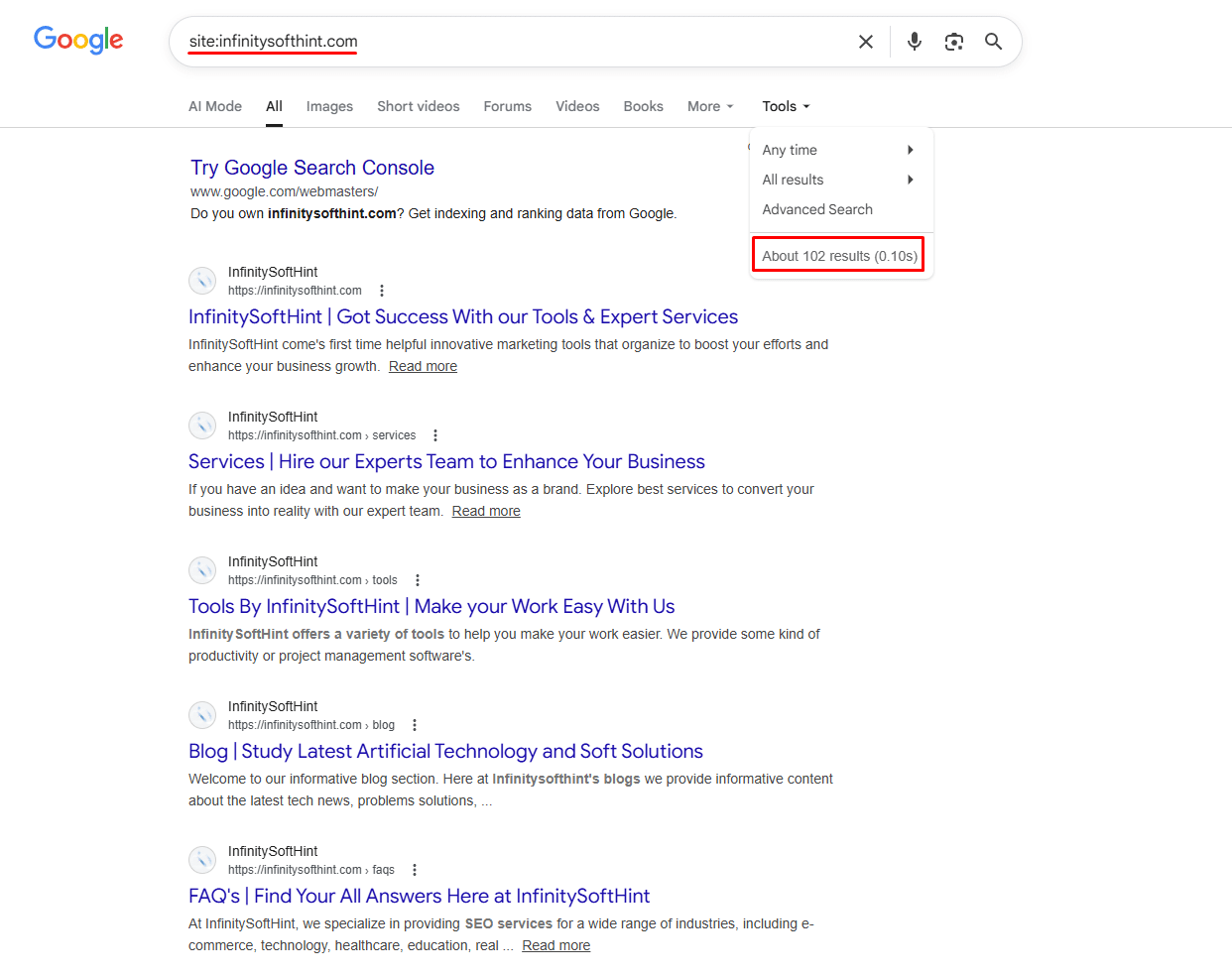
Conversely, the official XML sitemap identifies 108 distinct URLs discovered on the server.
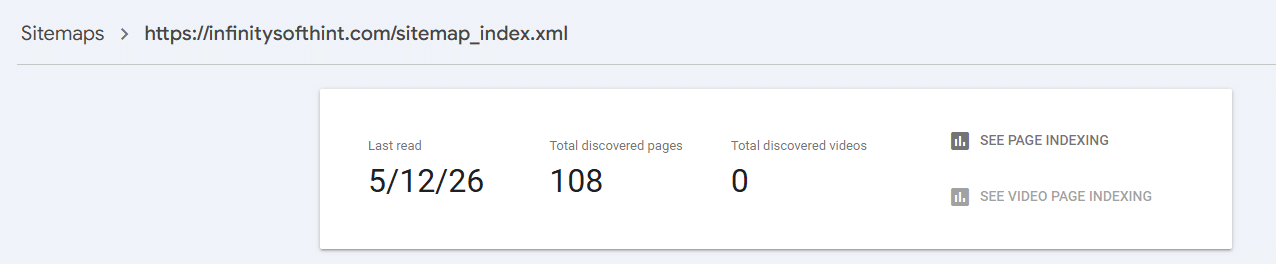
This diagnostic reveals that exactly 6 pages are currently missing from the crawl index.
Why does the site: operator show a different number of indexed pages than Google Search Console (GSC)?
Many SEOs panic when they see a discrepancy between a Google search and their GSC reports. It is important to know that the site: command provides an approximation, not an exact count. For larger websites, Google intentionally filters out similar pages from the standard search results, making the number appear smaller than it actually is. The site: operator is fantastic for quick diagnostics and spotting massive bloated numbers, but for 100% accurate, precise indexing data, you should always rely on your Google Search Console Index Coverage report.
E-commerce websites and large directories often use faceted navigation and filters for size, color, price, and other attributes to improve the shopping experience. However, these filters generate dynamic URLs using parameters, such as yoursite.com/shoes?color=red.
If these parameter URLs are not handled correctly with canonical tags or blocked in your robots.txt file, Google will index thousands of them. This creates massive duplicate content issues and slowly dilutes your site’s ranking power.
The Traditional Advice (And Why It Fails in 2026)
Most SEO guides recommend this command to check for indexed parameter URLs:
site:yoursite.com inurl:?
The logic is sound; the question mark is the universal symbol for a URL parameter, so this search should surface every dynamic URL Google has indexed on your site.
However, when we tested this operator on one of the largest e-commerce sites in the world, Amazon, using site:amazon.com inurl:? Google returned zero parameter URLs. Instead, it showed completely unrelated Amazon pages such as Amazon Relay, Amazon Music, and Amazon Freight, none of which contained a single parameter in their URL.
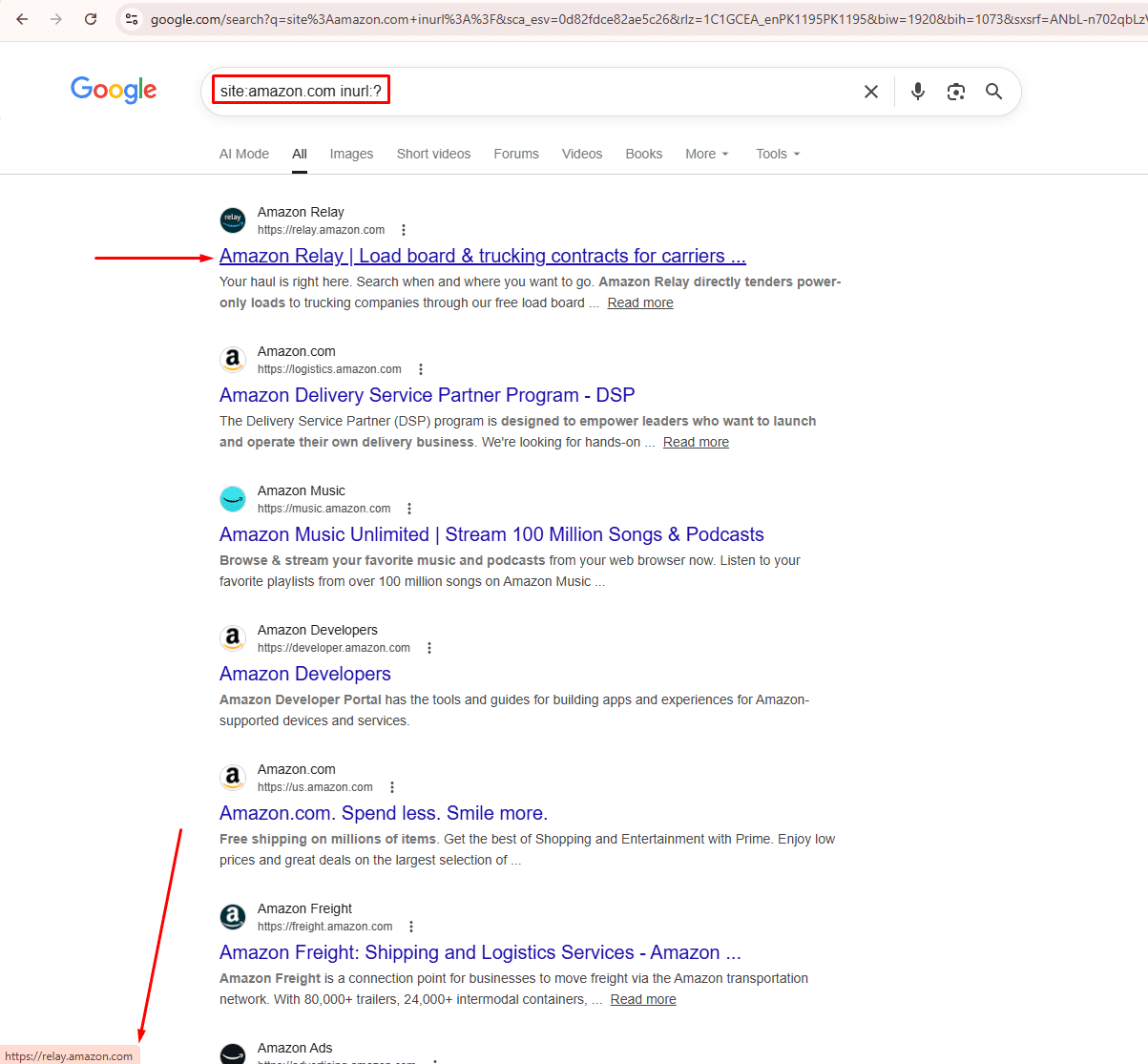
This is the same inurl: degradation we discussed earlier in this guide. Google is silently ignoring the operator and returning whatever it considers relevant for the site: portion of the query alone.
The Right Way to Audit Parameter URLs in 2026
Since the operator approach is unreliable, use these methods instead:
1. Google Search Console: Dedicated URL Parameters Tool
Unlike general indexing issues, Google Search Console has a tool built specifically for this problem. Go to GSC → Settings → Crawl → URL Parameters. Here you can tell Google exactly how to treat each parameter type across your entire site — whether to crawl all URLs with that parameter, ignore them completely, or treat them as duplicates of the clean parent URL. This is the most precise solution available for faceted navigation issues.
2. Screaming Frog SEO Spider
Crawl your entire site and filter results by URLs containing ?. Unlike GSC, which only shows indexed pages, Screaming Frog finds every parameter URL your CMS is generating — giving you the complete picture before Google even discovers them.
Once You Find Parameter URLs – What To Do?
After identifying problematic parameter URLs, you have three options:
Add a canonical tag on each parameter URL pointing back to the clean parent URL. This tells Google which version to index without disrupting the shopper experience. Alternatively, block low-value parameter URLs entirely in your robots.txt file. Finally, use the GSC URL Parameters tool to set crawl rules at scale, the most efficient solution for large e-commerce sites with hundreds of filter combinations.
2. Spotting Security Flaws and Website Architecture Errors
Technical SEO isn’t just about indexing; it is also about ensuring your website’s architecture is secure and correctly structured. Search operators can act as a quick security audit, revealing vulnerable pages that you thought were hidden.
Finding Non-Secure (HTTP) Pages (Myth vs. Reality)
Google has made it crystal clear: HTTPS is a ranking signal. If you recently migrated your website from HTTP to HTTPS, you need to ensure no old, insecure URLs are still in Google’s index. These pages can trigger browser warnings for your visitors and hurt your organic rankings.
The Outdated Advice: Many older SEO guides will tell you to use this exclusion command to find those pages: site:yoursite.com -inurl:https
Why It Doesn’t Work in 2026: If you actually test this operator today, you will find it is highly unreliable. Google’s search engine now strips protocol prefixes (http:// and https://) when rendering search results. Because of this visual change, the inurl: command can no longer accurately filter out secure pages.
The Real-World Solution: As an SEO professional, you should not rely on broken search operators for this specific task. Instead, head directly to your Google Search Console. Navigate to the Experience > HTTPS report. This is the only 100% accurate way to see if Google is indexing non-secure HTTP versions of your URLs. For a proactive check before pages are even indexed, run a crawl with Screaming Frog.
One of the most common and dangerous technical SEO mistakes is leaving a staging, development, or forgotten subdomain open to search engines. Developers often create subdomains (like dev.yoursite.com or staging.yoursite.com) to test new features. If these environments get indexed, they create massive duplicate content issues and can even expose sensitive backend information.
To trace all indexed subdomains while excluding your main website, use this wildcard formula:
site:*.yoursite.com -site:www.yoursite.com
Real-World Audit Example: I regularly run this check during my technical SEO audits. Recently, I tested this exact operator on a random domain using the query: site:*.zamstudios.com -site:www.zamstudios.com.
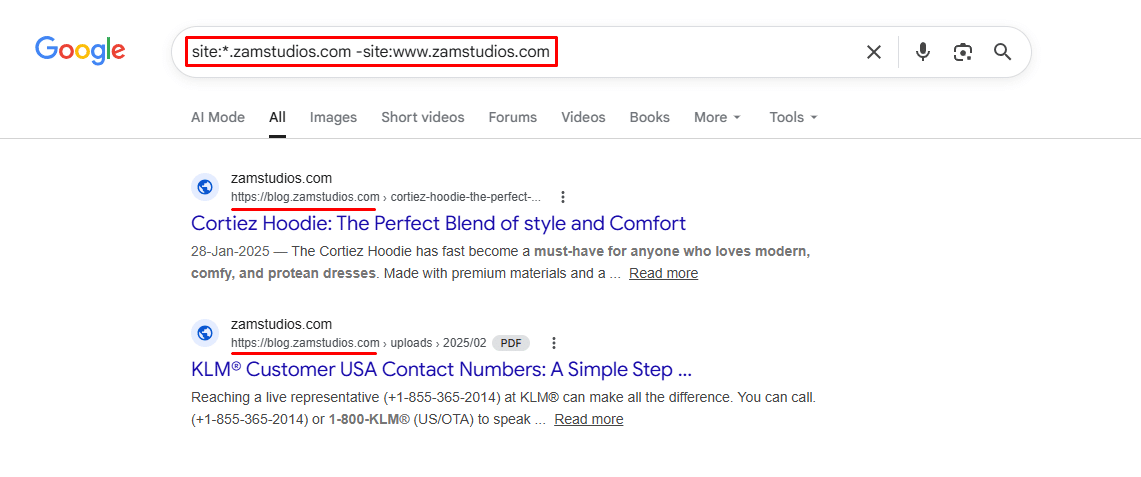
As you can see in the screenshot above, the operator successfully bypassed the main “www” website and instantly revealed that a blog.zamstudios.com subdomain was still indexed in Google’s database.
Whether it is an old blog repository, a hidden staging site, or a test. environment, this command brings them out of the shadows. If you see unwanted URLs popping up in your results, you must immediately apply a noindex tag, redirect them, or password-protect those environments to protect your site’s architecture.
Over time, websites accumulate “junk” in Google’s index. These are low-value files and auto-generated pages that drain your crawl budget and provide zero value to users.
Locating Accidental Indexed Files (PDF, DOC, TXT)
You might have uploaded internal company reports, old pricing sheets, or client onboarding PDFs to your server. If these files are not protected, Google will index them. Not only does this look messy in search results, but it can also leak private business data and waste your crawl budget.
To locate these specific file types, use the filetype: or ext: operator:
site:yoursite.com filetype:pdfsite:yoursite.com ext:doc
Real-World Audit Example: To demonstrate how easily search engines index these documents, I ran a quick test on a random domain using the exact query: site:seo.com filetype:pdf.
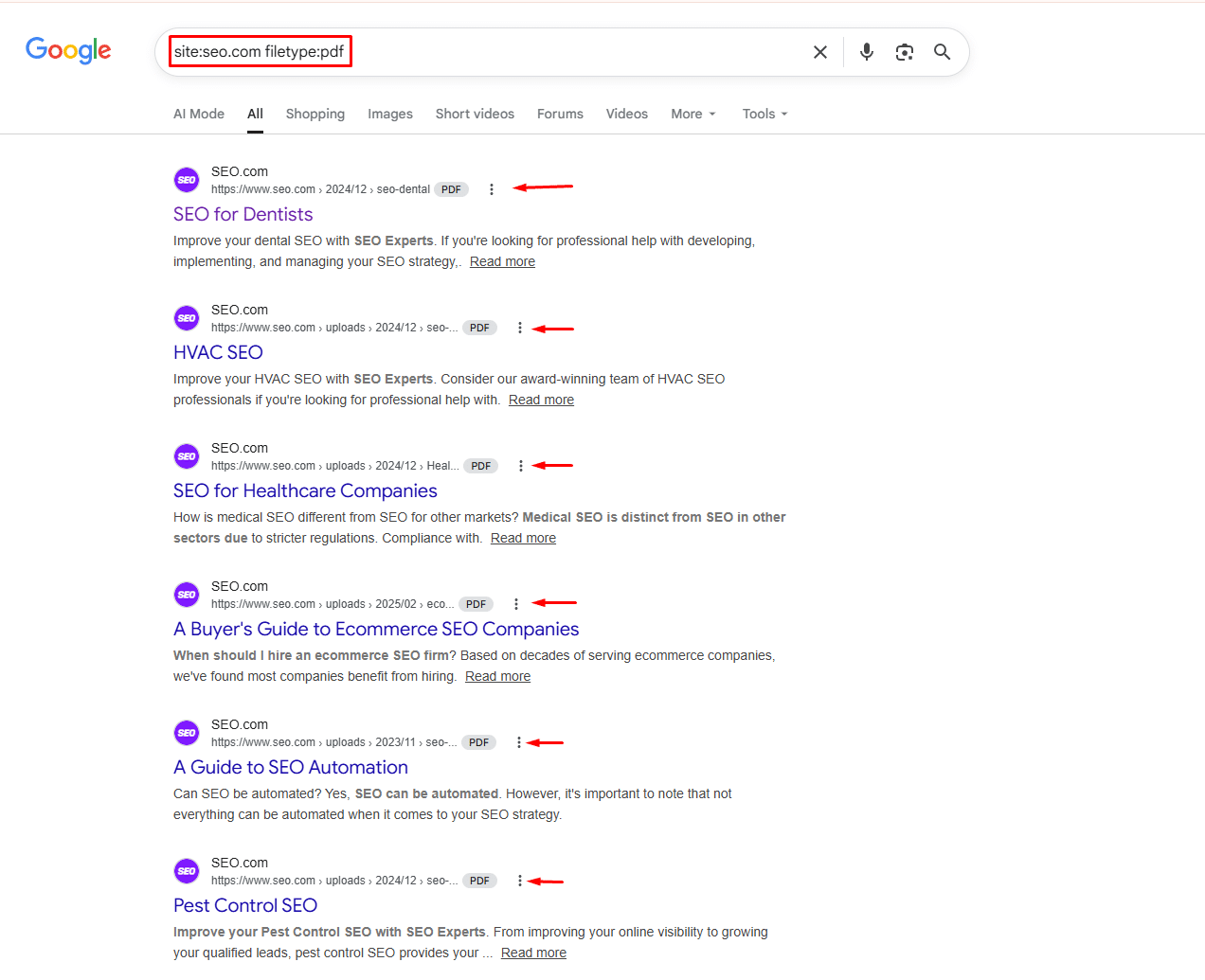
As you can see in the screenshot above, Google returned the domain’s indexed PDF files instantly. Whether it is a public eBook, a forgotten presentation, or a private business report, the filetype: operator will expose it.
Once you find these unwanted files on your own site, you can either delete them directly from your server or block them via your robots.txt file, or use the “Removals” tool in Google Search Console to de-index them immediately.
If you are using WordPress, your CMS is likely generating dozens of thin pages without you even realizing it. Every time you create a new “Tag” for a blog post, WordPress creates a dedicated URL for it. If you have 500 tags, you have 500 thin, low-quality pages diluting your site’s authority.
The Traditional Advice (And Why It No Longer Works)
Most SEO guides will tell you to run these searches to find CMS bloat:
site:yoursite.com inurl:tagsite:yoursite.com inurl:categorysite:yoursite.com inurl:author
This advice made sense a few years ago. However, if you test these operators today, even on high-authority sites like HubSpot, you will notice something alarming. Google either returns completely irrelevant results or shows a “Missing: inurl” warning, meaning it silently dropped your operator and searched on its own terms.
This is not a mistake on your end. As of 2026, Google has quietly degraded advanced search operators, making them unreliable for serious SEO audits.
The Right Way to Find CMS Bloat in 2026
Instead of depending on unreliable operators, use these three methods that give you accurate and complete data:
1. Google Search Console (Free & Most Accurate)
Go to GSC → Indexing → Pages. Filter by URL path. Search for /tag/, /category/, or /author/ in the indexed pages list. This shows you exactly what Google has indexed — no guesswork, no missing results.
2. Screaming Frog SEO Spider
Crawl your entire site and filter results by URL pattern. You will get a complete list of every tag, category, and author URL your CMS has ever generated — indexed or not.
3. Your XML Sitemap
Download your sitemap from yoursite.com/sitemap.xml and open it in any text editor. Use Ctrl+F to search for /tag/ or /author/. Every URL listed there is a page your CMS is actively telling Google to crawl.
Once You Find the Bloat, What to Do?
After identifying these thin pages, open your SEO plugin settings:
- RankMath: Titles & Meta → Tags → turn Robot Meta off
- Yoast: Search Appearance → Taxonomies → set Tags to No Index
Set all Tag and Author archives to noindex. This stops Google from wasting its crawl budget on pages that add zero value to your site.
(Pro Tip: There are dozens of other commands you can use to refine your searches. For a complete formatting guide and cheat sheet, make sure to bookmark our Google Search Operators Full List.)
4. Uncovering Duplicate Content & Keyword Cannibalization
Duplicate content confuses search engines. If multiple pages on your website target the same topic, Google will not know which to rank, often leaving neither page to perform well. This phenomenon is known as keyword cannibalization.
Identifying Keyword Cannibalization Across Your Site
To quickly check if you are competing against yourself for a specific ranking, you can limit your search to your domain and filter by title tags.
site:yoursite.com intitle:"target keyword"
Real-World Audit Example: To see keyword cannibalization in action on a massive scale, I ran a quick test on Medium using the query: site:medium.com intitle:"small business SEO services".
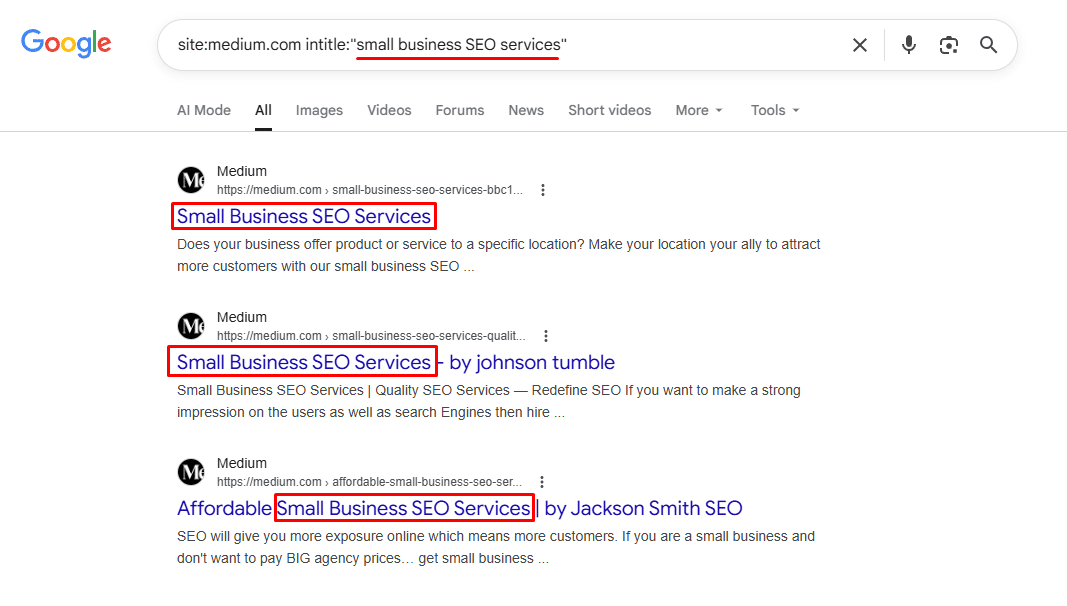
As you can see in the screenshot above, the search returned numerous different articles on Medium, all competing for the exact same title and intent. While Medium is a massive UGC (User-Generated Content) platform, if this happens on your business website, it is a critical SEO issue. Google gets confused about which page is the primary source, often leading to none of the pages ranking well.
If this query returns five different blog posts on your own site, all trying to rank for the exact same term, you have a clear cannibalization issue. The best technical fix is to consolidate those articles, redirect the weaker ones to the strongest URL using 301 redirects, and create a single, authoritative pillar page.
Finding Exact Match Duplicate Content & Plagiarized Copies
Do you need paid tools to find duplicate or stolen content?
Absolutely not. If you suspect a competitor or a scraper site has stolen your hard work, you do not need a premium plagiarism checker. Simply take a unique, specific sentence from your blog post, place it inside exact match quotes (""), and exclude your own domain using the minus (-) operator.
"your unique sentence from your article" -site:yoursite.com
Real-World Audit Example: To demonstrate this, we took a unique sentence from IBM’s official AI definition page at ibm.com/think/topics/artificial-intelligence:
"enables computers and machines to simulate human learning" -site:ibm.com
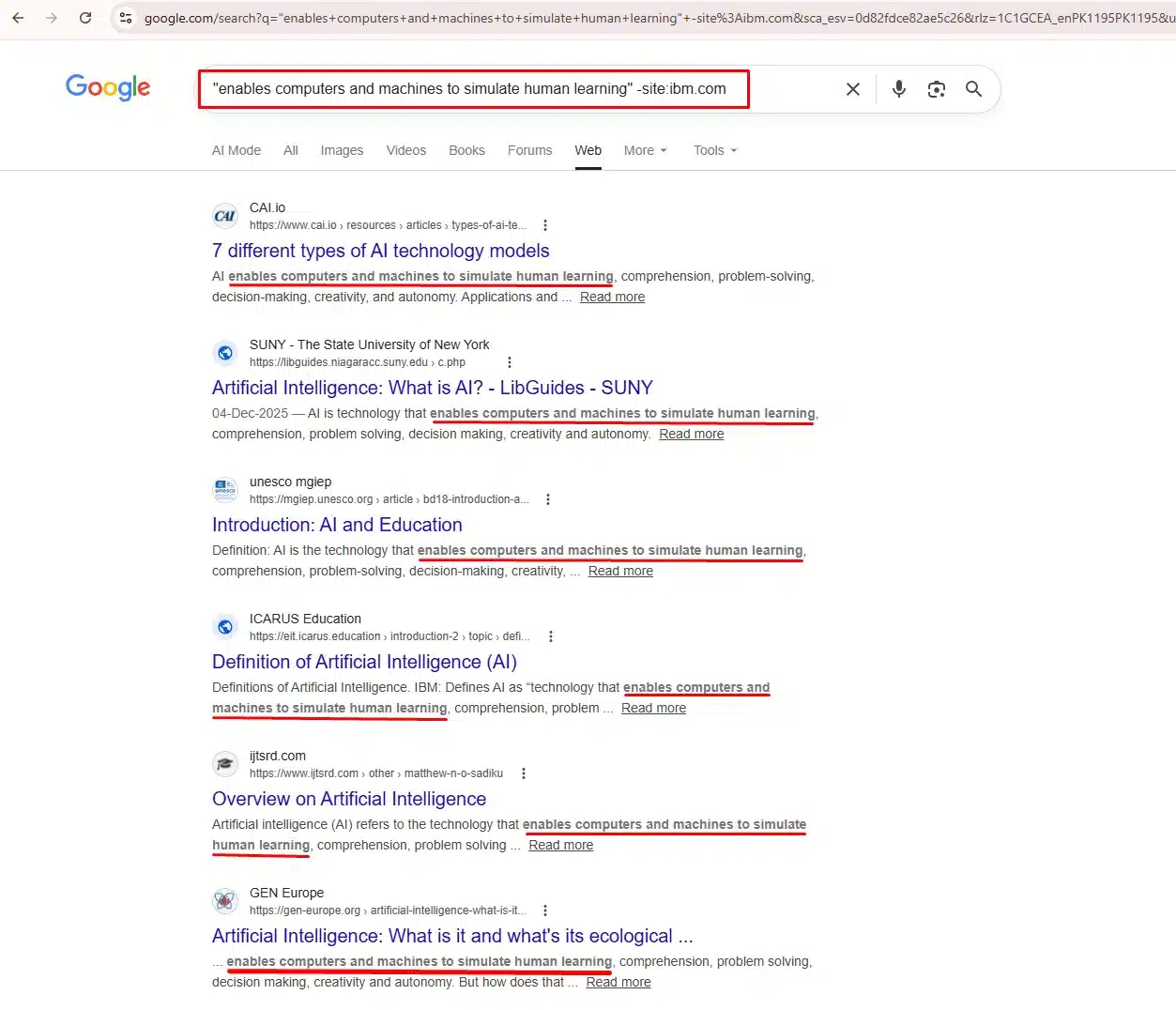
The results instantly revealed multiple websites that had copied IBM’s exact text, including university library guides, education platforms, and blog sites, all using the same phrase without original writing.
One Critical Rule: Keep Your Phrase Short
This is where most people go wrong. When we first tested a longer sentence from the IBM page, Google misread the minus operator as part of the quoted phrase, and IBM’s own pages appeared in the results despite the exclusion command.
The fix was simple: shorten the quoted phrase to 8-10 words. Once we did that, both -site:ibm.com of us and -ibm.com worked perfectly, and IBM was excluded from the results entirely.
So the golden rule is: the shorter and more unique your quoted phrase, the more accurate your results.
What the Results Tell You
Once your search returns results, you will find two types of sites:
- Sites that have copied your content without credit are candidates for a DMCA takedown. You can file one directly through Google Search Console.
- Sites that have quoted your content with attribution, these are potential backlink opportunities. You can reach out and ask them to turn their mention into a proper link.
One Important Limitation
This method only surfaces pages that Google has already indexed. Low-authority scraper sites or very recently published copies may not appear. For a more thorough audit, tools like Copyscape or Ahrefs Content Explorer crawl a much wider range of sources.
This command will instantly reveal every other website on the internet that has published your exact text, allowing you to easily file DMCA takedowns or demand backlink attribution.
5. Verifying Website Migrations & Redirection Health
Checking Old Domain Indexation After a Site Move
Moving a website to a new domain is one of the riskiest technical SEO maneuvers. A common disaster occurs when the old domain remains indexed because 301 redirects were not implemented correctly. Every page Google still shows from your old domain is NOT sending authority to your new domain.
To verify that your migration was successful, run this simple search: site:olddomain.com
Over the weeks following your migration, this number should steadily drop toward zero. If hundreds of pages from the old domain are still appearing months later, your redirects are broken, and you are bleeding organic traffic.
Real-World Audit Example: Google’s Own Domain Migration
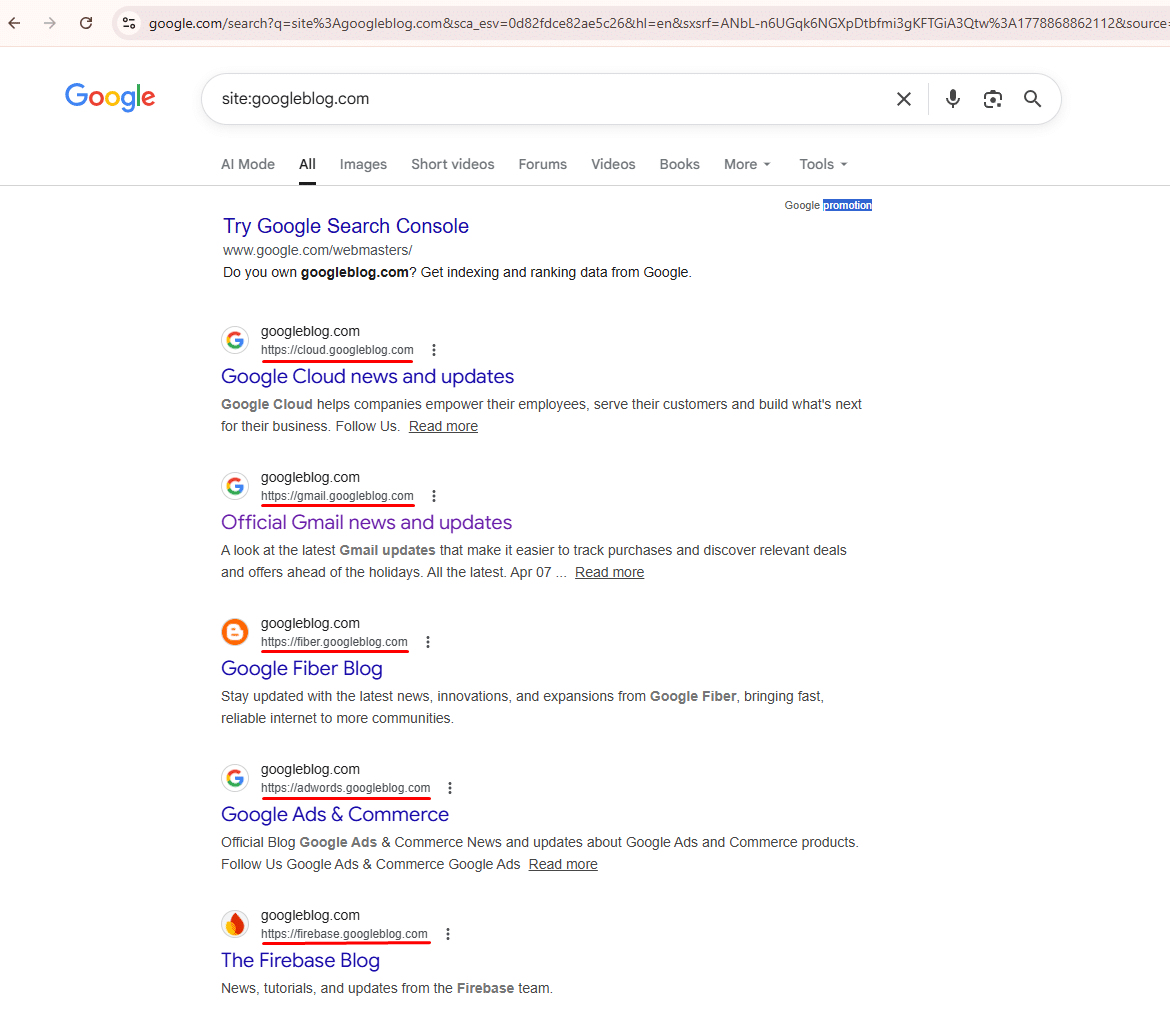
To see exactly how this works, consider Google’s own blog migration. Google moved its blogging properties from googleblog.com to blog.google.
When you search site:googleblog.com today, Google still returns multiple indexed pages, including Google Cloud, Gmail, Google Fiber, and Firebase blogs, all still living on the old domain.
Now search site:blog.google and you see the new domain is also fully active with fresh, regularly updated content.
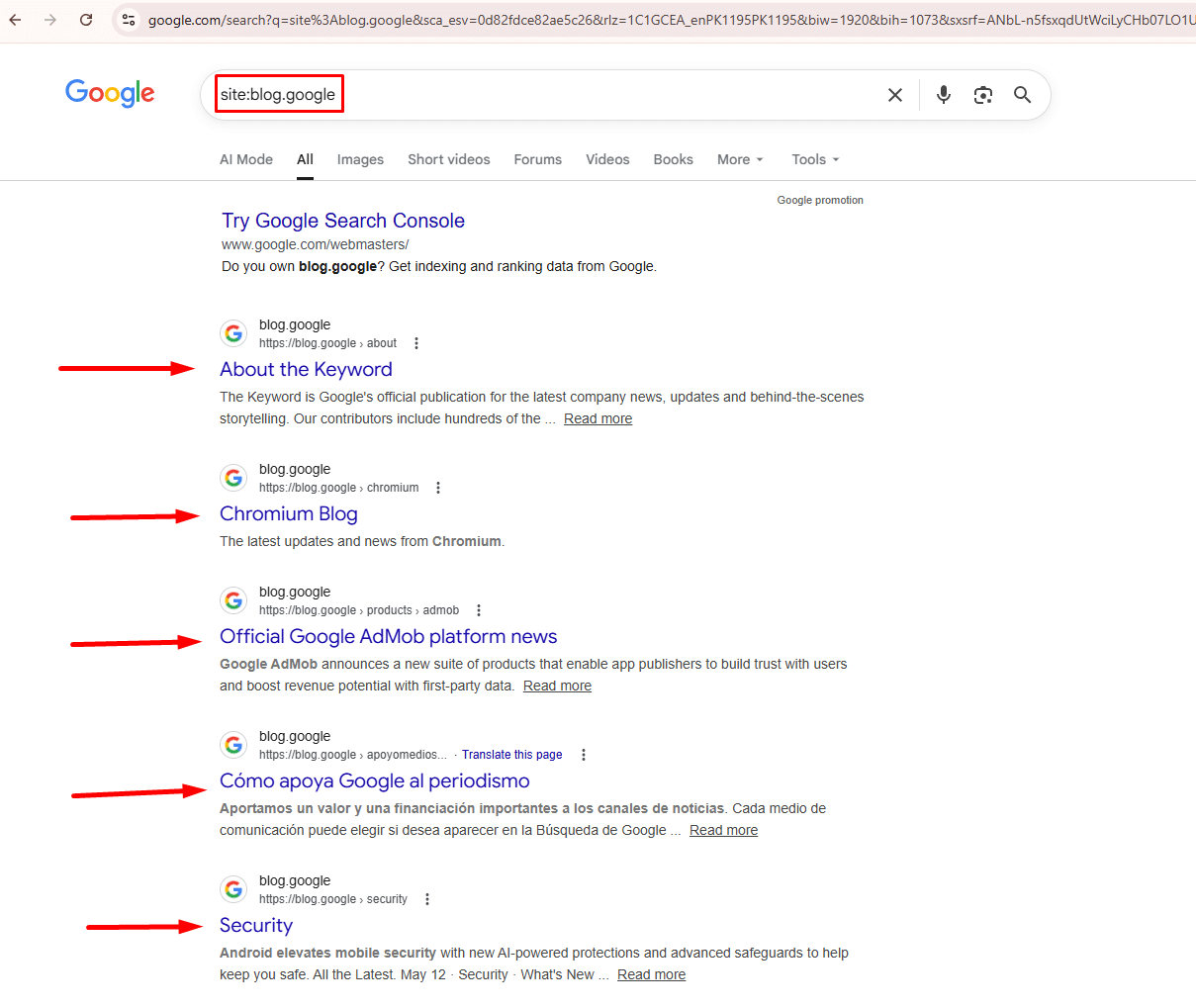
This tells us that googleblog.com was never fully retired, Google intentionally kept both domains active for different properties. For your own site migration, however, seeing results on your old domain months after moving is a red flag that demands immediate attention.
What To Do If Old Pages Are Still Indexed
If your old domain still shows results weeks after migration, take these steps:
First, audit your 301 redirects with Screaming Frog to confirm that every old URL points to its new equivalent. Second, submit your new sitemap in Google Search Console and use the URL Inspection tool to request indexing of key new pages. Third, add a canonical tag on old pages pointing to the new domain as a backup signal for Google.
Moving a website to a new domain or rebranding is one of the riskiest technical SEO maneuvers. A common disaster occurs when the old domain remains indexed because 301 redirects were not implemented correctly.
To verify that your migration was successful and that Google is actively dropping the old URLs, periodically run a simple search: site:olddomain.com
Over a few weeks, this number should steadily drop to zero. If hundreds of pages from the old domain are still showing up in the search results months later, your redirects are broken, and you are bleeding organic traffic.
Conclusion: Streamline Your SEO Audits
Mastering search operators turns Google into your most accessible technical SEO crawler. By combining commands like site:, inurl:, and filetype: You can instantly diagnose index bloat, uncover hidden staging environments, and resolve dangerous duplicate content issues all without spending a dime on enterprise software.
However, diagnosing an issue is only half the battle; fixing it requires expertise. If managing complex indexation rules, canonical tags, and site architecture is taking time away from running your business, we can help. At InfinitySoftHint, we provide comprehensive technical SEO audits and advanced troubleshooting as part of our SEO services to ensure your website is perfectly optimized for Google’s crawlers. Contact us today to secure your website’s technical foundation.
Once your website’s technical health is flawless and ready to scale, it is time to build off-page authority. Take the next step by reading our comprehensive guide on Search Operators for Link Building.