
If your Gmail inbox has thousands of emails sitting in it, scrolling to find “that one email” is a losing game. The good news is Gmail already has a powerful search engine built into it: you just need to know the right commands to unlock it. These commands are called Gmail search operators, and once you learn them, finding any email takes seconds instead of minutes.
Now let’s break down exactly what Gmail search operators are, why they’re worth learning, and how to use every major operator with real examples, from simple ones like from: to advanced combinations that let you search like a pro.
We’ll also cover common mistakes people make, mobile app differences, and a few developer-focused tricks for anyone working with the Gmail API.
What Are Gmail Search Operators?
Gmail search operators are special keywords and symbols that you type directly into the Gmail search bar to filter your emails based on specific criteria: sender, subject, date, attachment type, label, and more. Instead of typing a vague word and scrolling through hundreds of results, an operator tells Gmail exactly what to look for.
For example, typing:
from:john has:attachmenttells Gmail: “Show me only the emails from John that have an attachment.” That’s it, no scrolling, no guessing.
Search operators work in two main places inside Gmail:
- The search bar at the top of your inbox. Just type the operator directly and hit enter.
- The “Show search options” panel (the small filter/slider icon at the right end of the search bar). This is a visual form where you fill in fields like sender, subject, or date, and Gmail builds the operator query for you behind the scenes.
Both do the same job. The search bar is faster once you know the syntax; the filter panel is a good training wheel while you’re still learning which operators exist.
How Gmail Actually Reads These Queries?
Under the hood, every operator follows a simple pattern: operator:value. There’s no space between the operator name, the colon, and the value: from: john (with a space) won’t work the same way as from:john. This trips up a lot of beginners, so it’s worth remembering early.
You can also combine plain keywords with operators. For example:
invoice from:accounting@company.comThis searches for the word “invoice” specifically in emails from that sender, combining a normal keyword search with an operator in the same query.
Why Use Gmail Search Operators? (The Real Benefits)
It’s easy to assume “I’ll just scroll” is good enough until your inbox crosses a few thousand emails. Here’s what you actually gain by learning operators:
- Speed. Finding a specific email drops from minutes of scrolling to a single search that returns results instantly.
- Precision. Instead of generic keyword matches, you get exactly the emails that meet your criteria (right sender, right date range, right attachment type).
- Bulk actions made easy. Once a search narrows down the exact emails you want, you can select all of them and archive, delete, or label them in one action, perfect for cleaning out promotional emails or old newsletters in bulk.
- Foundation for automation. The same operators you use for searching are used to build Gmail filters, which can automatically label, forward, or archive incoming emails that match a pattern, so you set it up once, and Gmail keeps your inbox organized for you.
- Works across devices. Most operators work the same way on desktop, and a good number also work inside the Gmail mobile app (more on the exceptions later).
Pro Tip: Get into the habit of using
from:andhas:attachmenttogether whenever you’re hunting for a file someone sent you. It’s the single most useful combination for everyday inbox use, and it usually finds the email on the first try.
Deep Dive: Why This Matters More in 2026?
Inboxes have only gotten busier: automated receipts, notifications, newsletters, and CC’d threads mean the average person’s inbox grows by hundreds of emails a month. Gmail’s AI-based search has gotten smarter at guessing intent, but it still can’t read your mind about which John you meant or which invoice from last March you’re after. Operators remove the guesswork entirely: you tell Gmail precisely what you want, and it delivers precisely that every time, regardless of how “smart” the underlying algorithm is.
If you work in SEO or digital marketing, this same operator logic shows up far beyond Gmail. Google’s own search bar runs on a nearly identical system, and once you understand what Google search operators are and how they work, the skill carries directly into specialized workflows like technical SEO audits, digital PR and unlinked mention discovery, link building outreach, and even location-based research using Google Maps search operators. For the full breakdown of Google’s own commands, our complete list of Google search operators covers all of them in one place.
The Complete List of Gmail Search Operators
Below is every major Gmail search operator, grouped by what it searches for. In total, this guide covers 22 operator groups (30+ individual operators). Here’s the quick-reference table first, followed by a detailed breakdown of each one with real examples you can copy and try right now in your own inbox.
Quick Reference Table
| Operator | What It Does | Example |
|---|---|---|
from: / to: | Search by sender or recipient | from:sarah |
subject: | Search subject line only | subject:invoice |
has:attachment | Emails with any attachment | has:attachment |
larger: / smaller: | Filter by email size | larger:10M |
after: / before: | Filter by exact date range | after:2026/01/01 |
older_than: / newer_than: | Filter by relative time | older_than:30d |
label: | Search by label | label:important |
is: | Filter by status | is:unread |
in: | Search a folder/location | in:spam |
category: | Search an inbox tab | category:purchases |
cc: / bcc: | Search Cc/Bcc fields | cc:john@example.com |
deliveredto: | Search by exact delivery address | deliveredto:me@example.com |
list: | Search by mailing list | list:info@example.com |
has:youtube/drive/document/spreadsheet/presentation | Emails with embedded content | has:drive |
in:archive / in:snoozed / in:chats | More location filters | in:chats |
is:muted / is:read | More status filters | is:muted |
size: | Filter by exact byte size | size:1000000 |
older: / newer: | Alternate date filters | older:2026/04/16 |
" " / ( ) | Exact phrase / group terms | subject:(dinner movie) |
+ | Force exact word match | +unicorn |
| Advanced/niche operators | rfc822msgid:, star colors, label:encryptedmail, has:userlabels | has:yellow-star |
filename: | Search by attachment name/type | filename:pdf |
1. from: and to: — Search by Sender or Recipient
These are the two most commonly used operators, and for good reason: most of the time, you remember who sent an email even if you forget the subject.
from:sarah@company.comShows every email sent by that address.
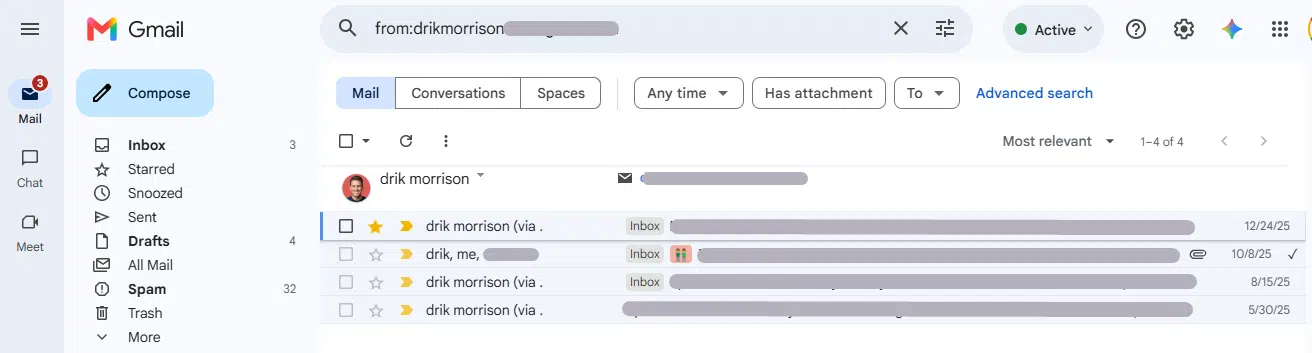
to:mike@company.comShows every email you sent to that address (useful for checking your own sent history too).
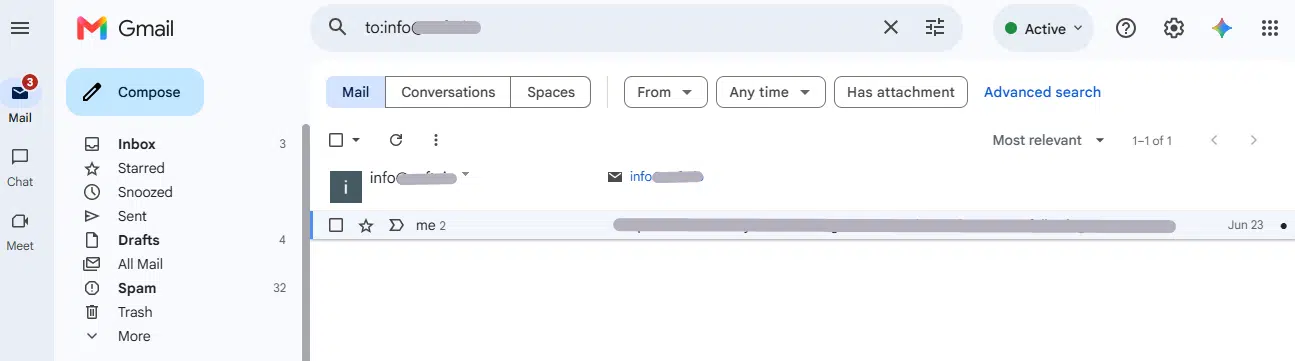
You can also search by name instead of full email if the sender is saved in your contacts:
from:sarah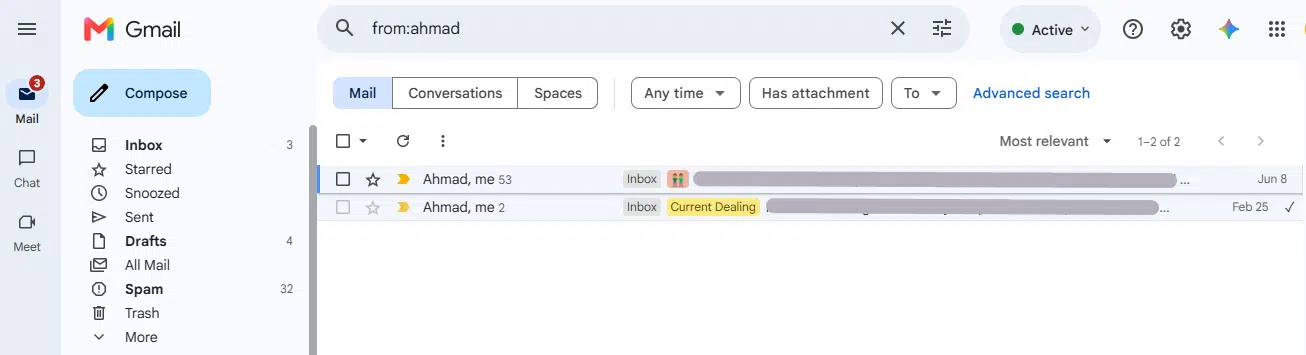
Pro Tip: Combine
from:with a keyword to narrow things down instantly, likefrom:sarah invoice, instead of opening every email from Sarah one by one.
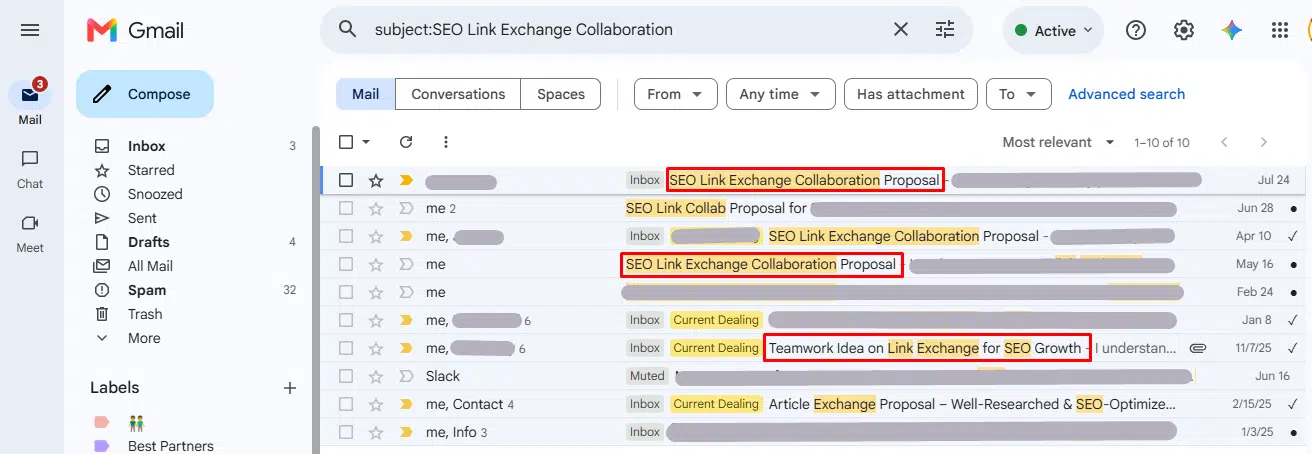
2. subject: — Search Within the Subject Line Only
subject:meeting notesThis only matches emails where “meeting notes” appears in the subject line, not the body. It’s the fastest way to find a specific email thread when you remember the exact wording of the subject.
3. has:attachment — Find Emails With Files Attached
has:attachment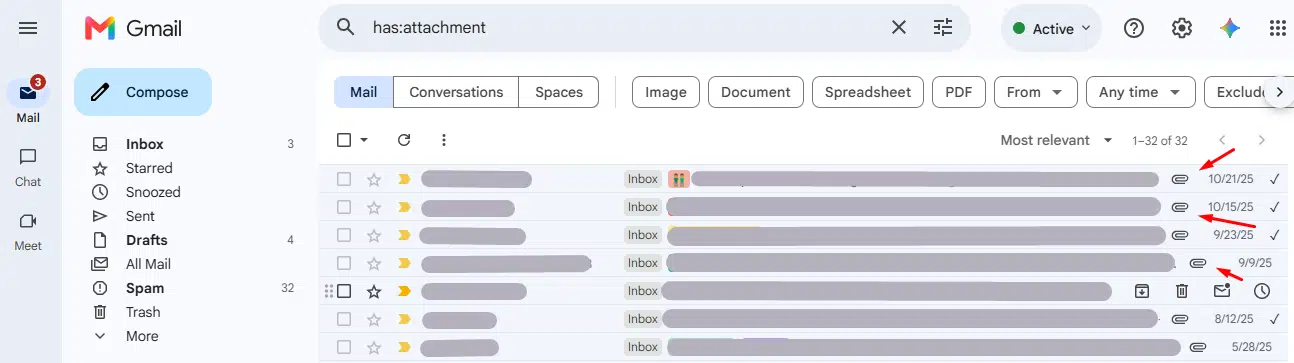
Shows every email that has any attachment, regardless of file type. Combine it with from: or subject: to zero in on a specific file someone sent you:
from:accounting has:attachment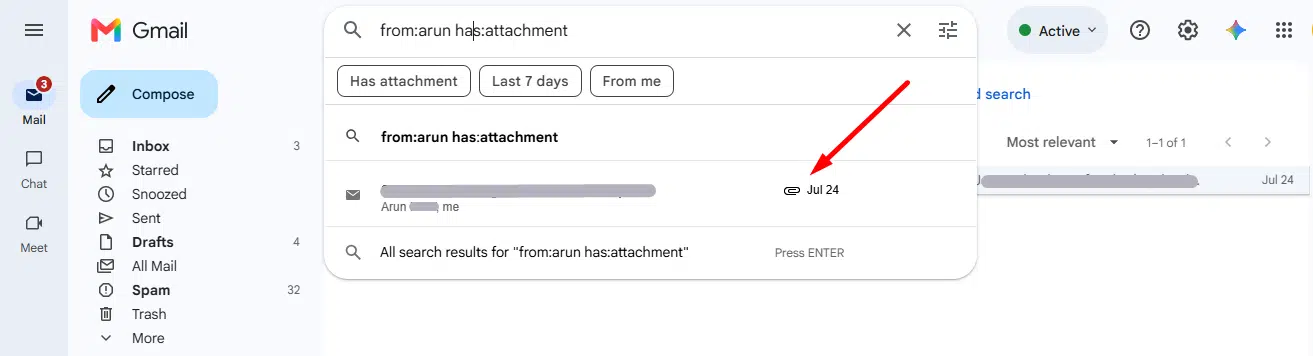
4. larger: and smaller: — Search by Email Size
Useful for cleaning up storage or finding heavy attachments.
larger:10MShows emails larger than 10MB. You can use k for kilobytes and M for megabytes.
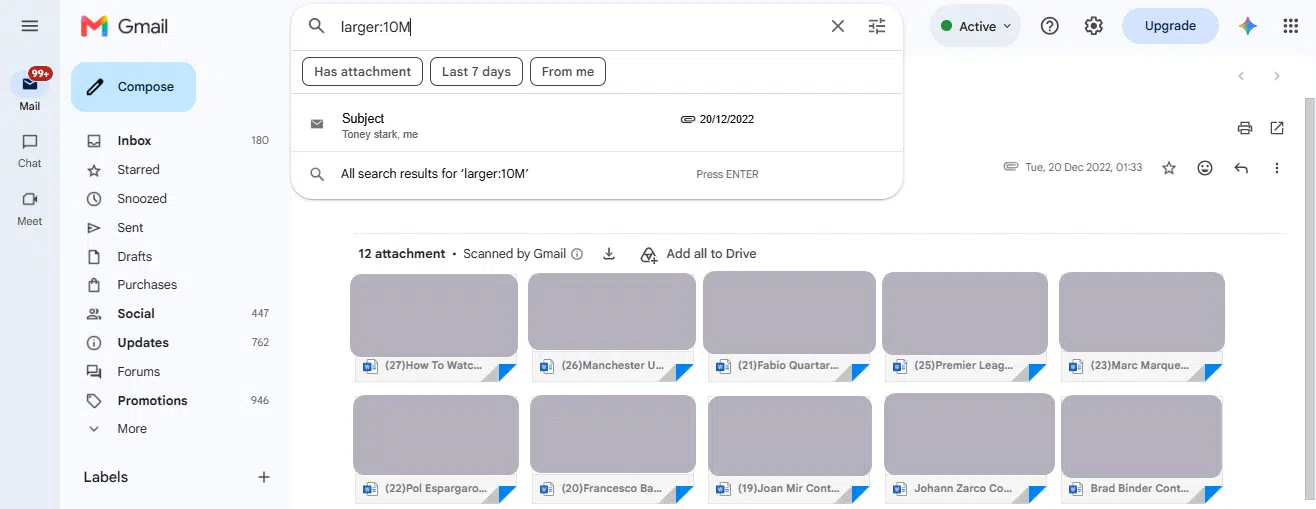
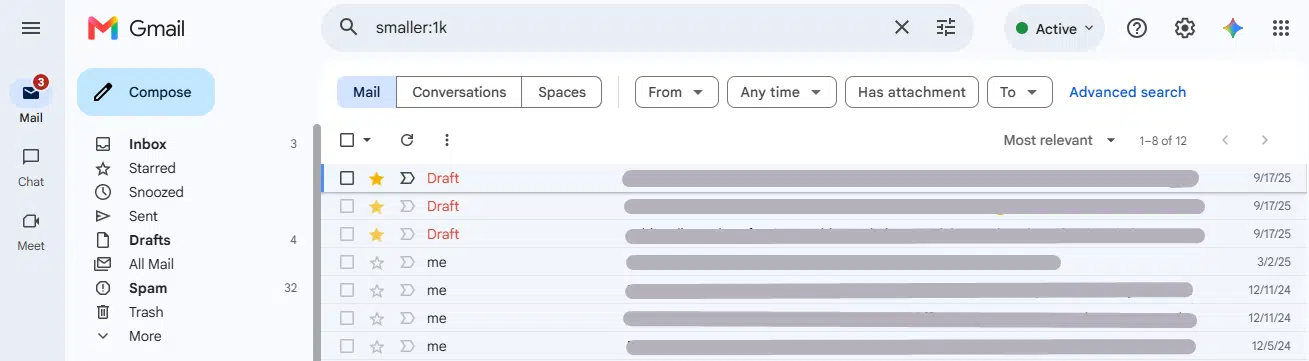
smaller:1kShows emails smaller than 1KB (kilobyte), handy when you want to exclude bulky attachment-heavy emails from a search.
5. after: and before: — Search by Date Range
after:2026/01/01 before:2026/02/01This shows emails sent during January 2026.
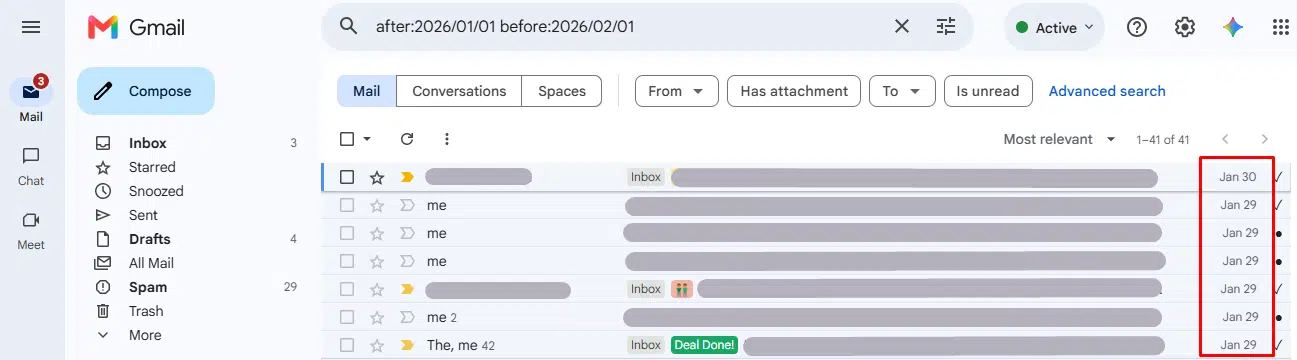
Important nuance: after: and before: work on the date you specify itself being excluded and included in a slightly confusing way, after:2026/01/01 includes emails from January 1 onward, while before:2026/02/01 stops right before February 1. In other words, the range is inclusive of the start date and exclusive of the end date. If you want to be completely sure you’ve captured a specific day, it’s safest to set before: one day later than the last day you want included.
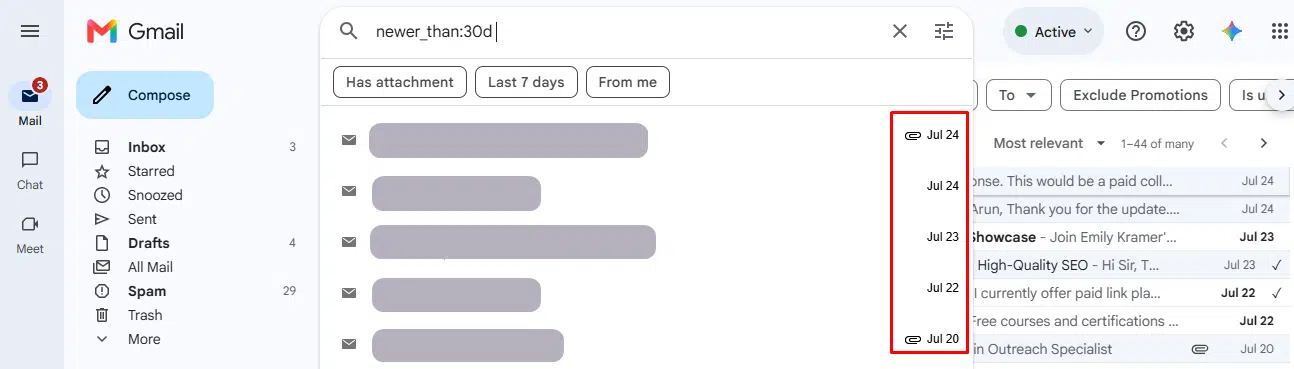
6. older_than: and newer_than: — Search by Relative Time
Instead of typing exact dates, these operators let you search relative to today, which is faster for quick cleanups.
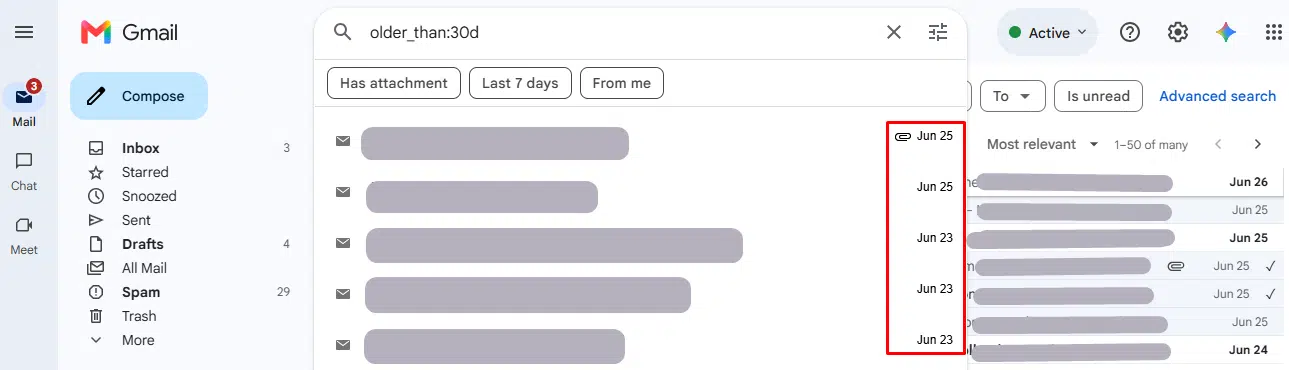
older_than:30dShows emails older than 30 days. You can replace d with m for months or y for years.
newer_than:7dShows emails from the last 7 days.
Pro Tip:
older_than:1y has:attachment larger:5Mis a great combination for finding old, heavy emails that are safe to delete or archive to free up storage space.
7. label: — Search by Gmail Label
label:importantShows emails tagged with the “Important” label. This also works with any custom label you’ve created, and with Gmail’s built-in category labels:
label:inbox
label:category_promotions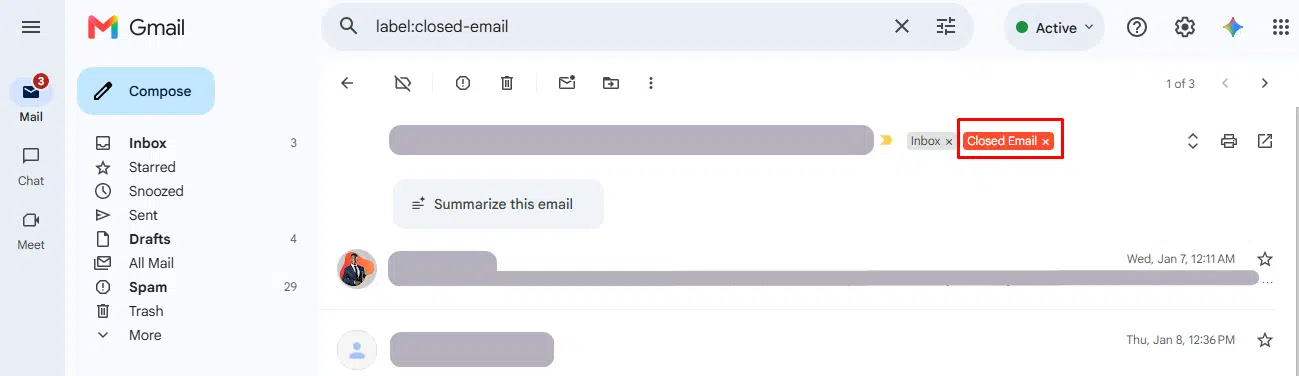
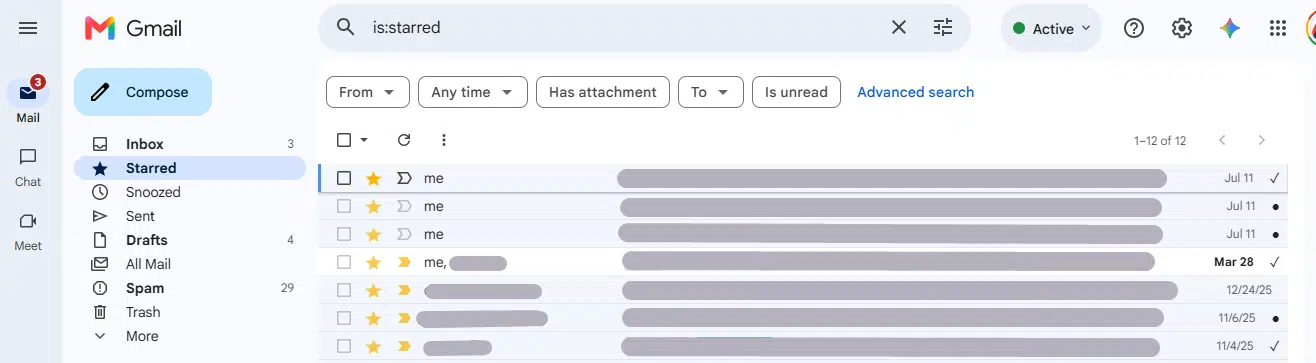
8. is: — Search by Email Status
is:unread
is:starred
is:important
These check the current status of an email rather than its content, extremely useful for quickly clearing unread messages or reviewing everything you’ve starred for later.
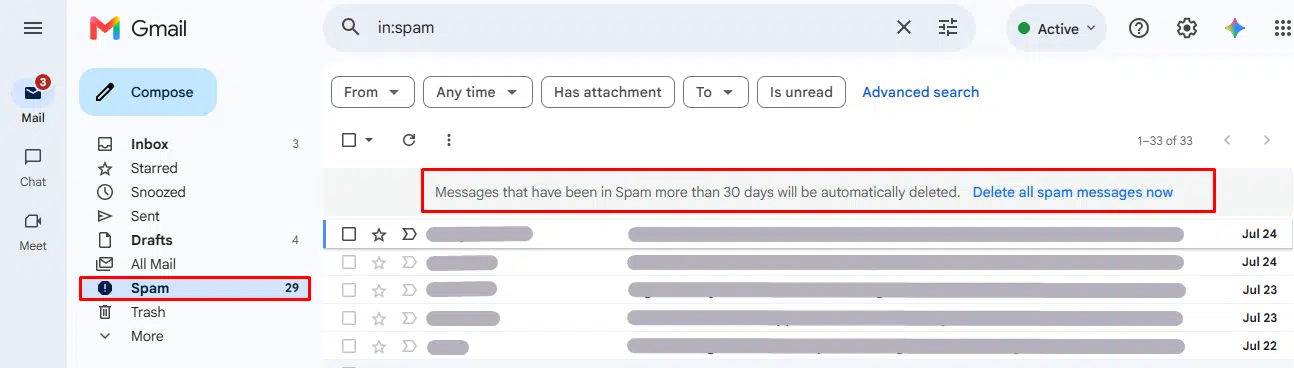
9. in: — Search by Location/Folder
in:spam
in:trash
in:anywhere
in:anywhere is particularly useful because it searches across Spam and Trash too, folders that are excluded from a normal search by default.
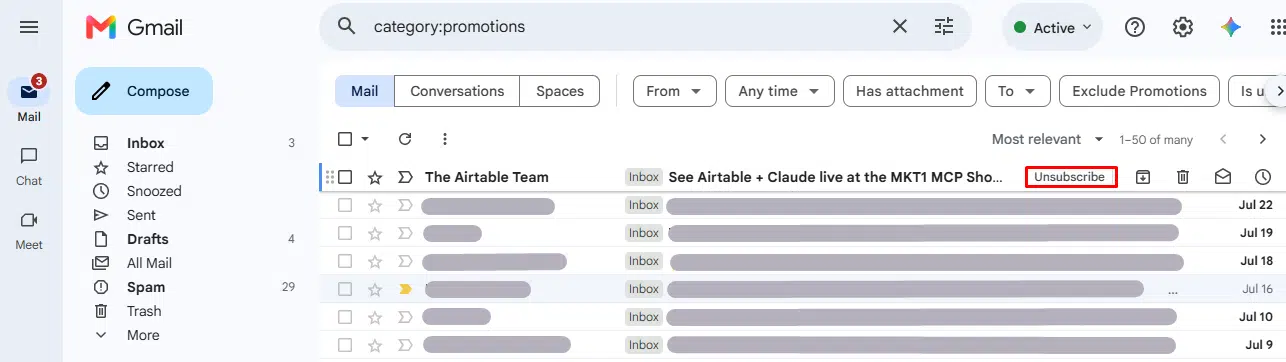
10. category: — Search Gmail’s Inbox Tabs
If your inbox uses the tabbed layout, you can search any of Gmail’s seven built-in categories directly:
category:primary
category:social
category:promotions
category:updates
category:forums
category:reservations
category:purchases
reservations and purchases are lesser-known ones. Gmail automatically groups flight/hotel confirmations under reservations and order/receipt emails under purchases, so these two are surprisingly useful for finding a booking or an old receipt fast.
11. cc: and bcc: — Search by Cc or Bcc Recipients
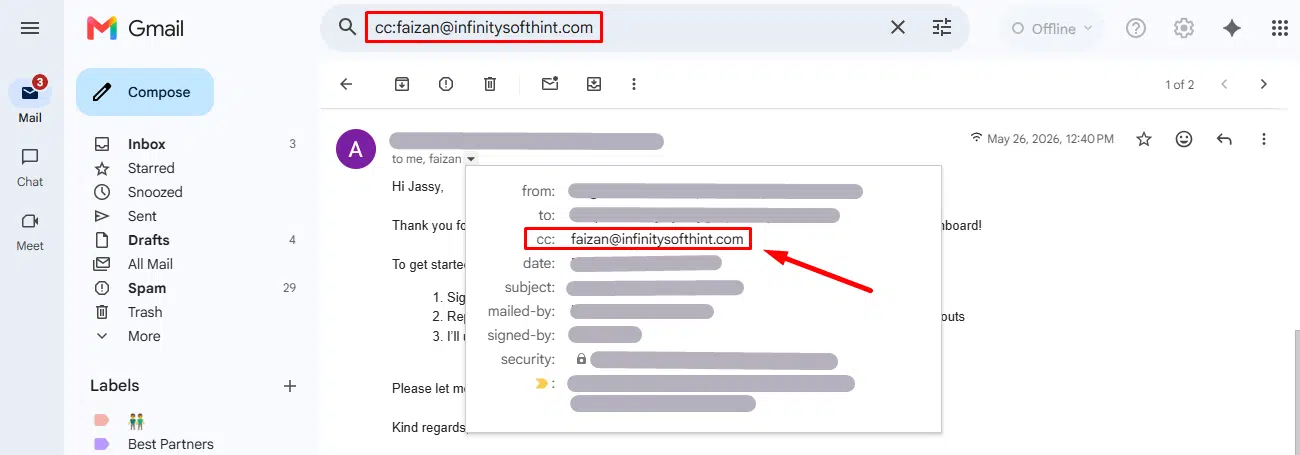
cc:john@example.com
bcc:david@example.com
These work exactly like to:, except they check the Cc (Carbon Copy) and Bcc (Blind Carbon Copy) fields instead of the main recipient field. Useful when you know someone was looped in on a thread but wasn’t the primary recipient.
12. deliveredto: — Search by the Exact Delivery Address
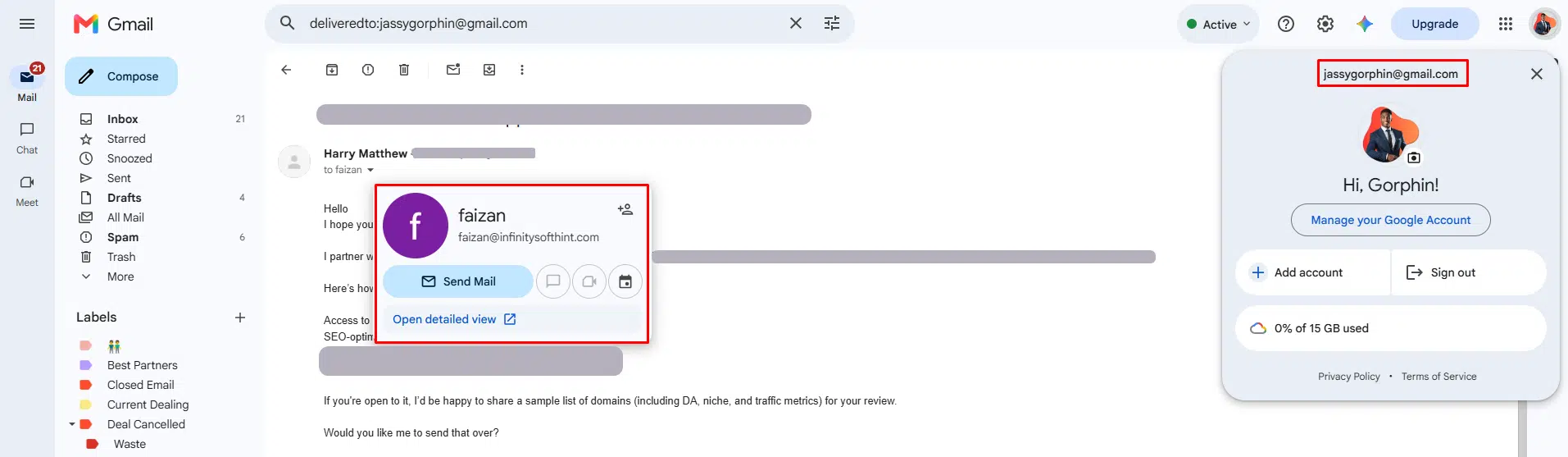
deliveredto:username@example.comIf you manage multiple email aliases that all forward into one Gmail account, this operator finds messages based on which specific address they were actually delivered to, not just who they were addressed to.
13. list: — Search by Mailing List
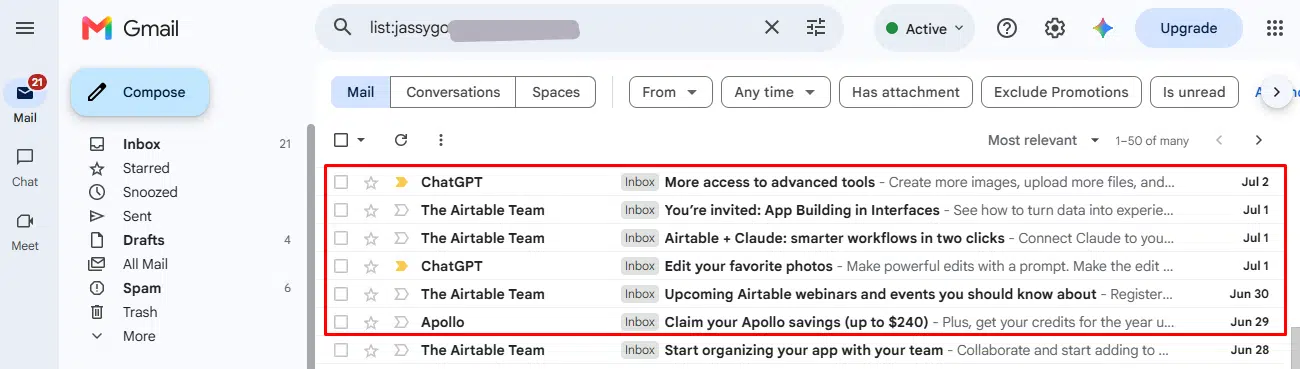
list:info@example.com
Finds every email that came through a specific mailing list or newsletter distribution address.
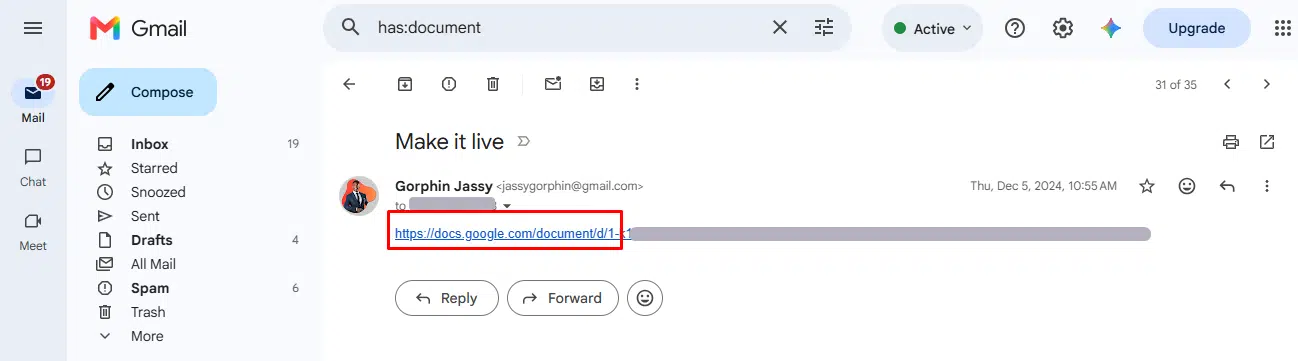
14. More has: — Variants
has:attachment is the one everyone knows, but has: also detects several other content types:
has:youtube
has:drive
has:document
has:spreadsheet
has:presentation
These find emails containing an embedded YouTube video, or a shared Google Drive file, Doc, Sheet, or Slides link, respectively, even if there’s no traditional file attached.
15. in:archive, in:snoozed and in:chats — More Location Operators
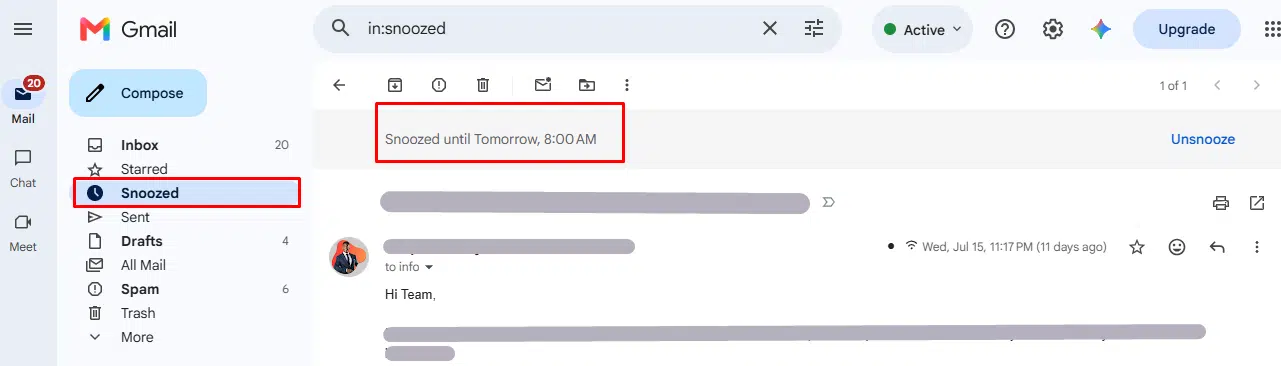
in:archive payment reminder
in:snoozed birthday reminder
in:chats project update
in:archive searches only messages you’ve archived (removed from the inbox but not deleted), in:snoozed pulls up anything you’ve snoozed to reappear later, and in:chats searches your Google Chat conversation history directly from Gmail if you have Chat integrated into your inbox.
16. is:muted and is:read — More Status Operators
is:muted subject:team celebration
is:read
is:muted finds conversations you’ve muted (so they no longer notify you), and is:read is the mirror image of is:unread.
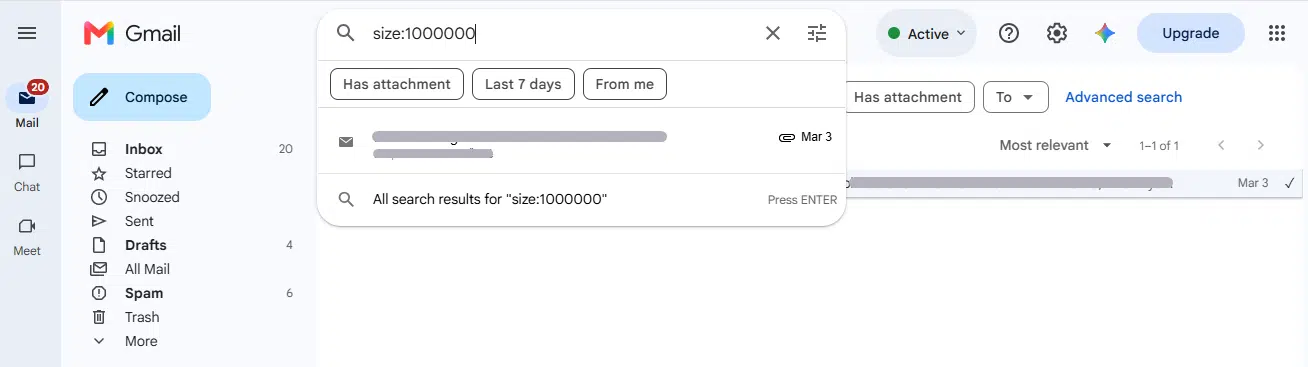
17. size: — Search by Exact Byte Size
size:1000000While larger: and smaller: work with rounded units like 10M, size: lets you search by an exact byte count when you need pinpoint precision.
18. older: and newer: — Alternate Date Operators
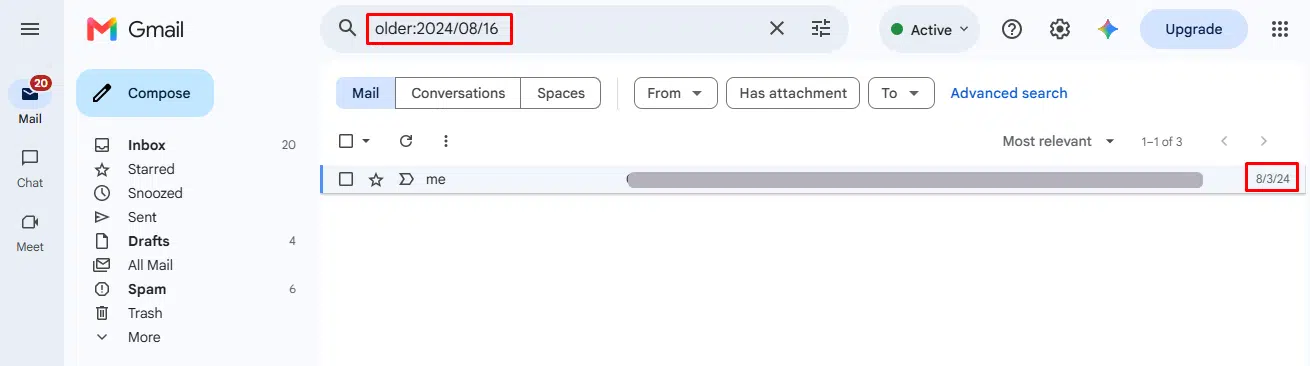
older:2026/04/16
newer:2026/04/16
These function alongside before: and after: for date-based filtering. Stick with after:/before: for everyday use since they’re the more commonly documented pair, but know that older:/newer: exist if you see them in older filter setups or shared search links.
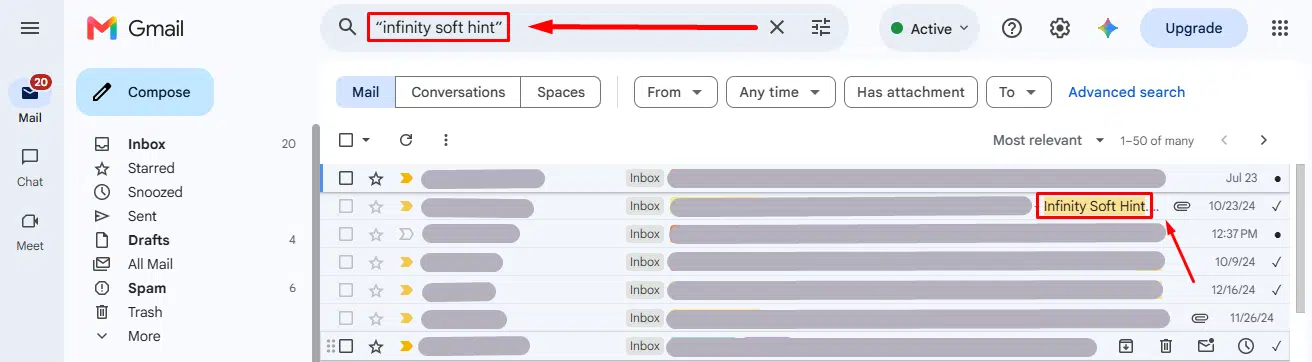
19. Exact Phrase and Grouping — “” and ( )
"dinner and movie tonight"
subject:(dinner movie)
Quotation marks force Gmail to match the exact phrase instead of the individual words separately. Parentheses group multiple terms together, most often used inside subject: when you’re checking for more than one word.
20. + — Force an Exact Word Match
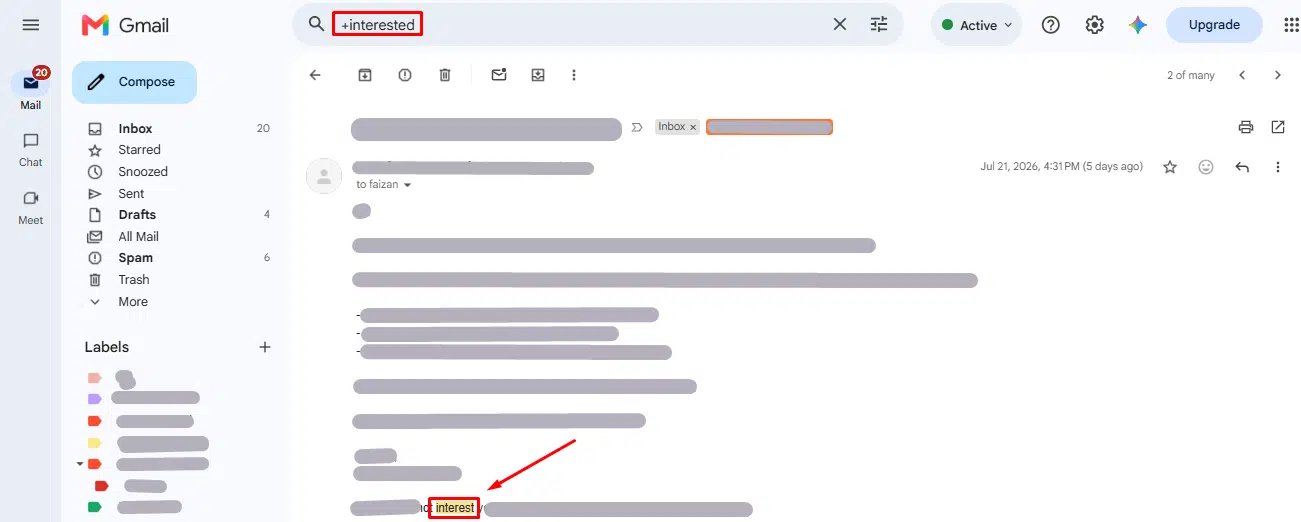
+unicornThis is documented as a way to stop Gmail from broadening a search term to include close variations or word stems. In practice, results can be inconsistent: Gmail’s search has shifted toward relevance-based and AI-assisted ranking in recent updates, and it sometimes still surfaces related words even with the + in place.
Pro Tip: If
+isn’t giving you the exact match you expect, wrap the word in quotation marks instead, like"unicorn". Exact phrase matching with quotes tends to behave more reliably than the+operator in current Gmail.
21. Advanced and Lesser-Known Operators
A handful of operators exist for very specific, niche situations. You won’t need these day-to-day, but they’re worth knowing they exist:
- rfc822msgid: — finds an email using its unique message-ID header (mostly useful for developers or support/IT troubleshooting).
- has:userlabels and has:nouserlabels — find messages that do or don’t have any custom label applied.
- label:encryptedmail — finds emails that were sent using Gmail’s client-side encryption.
- label:^unread — an alternate way to search unread messages using Gmail’s internal system-label naming (the
^prefix marks a system label). It isn’t listed on Google’s own support page, but it works and shows up occasionally in advanced filter setups;is:unreadis the simpler, officially documented equivalent for everyday use. - Star-color operators like
has:yellow-star,has:red-star, orhas:purple-question, useful only if you’ve set up Gmail’s multiple-star-color system for organizing starred emails.
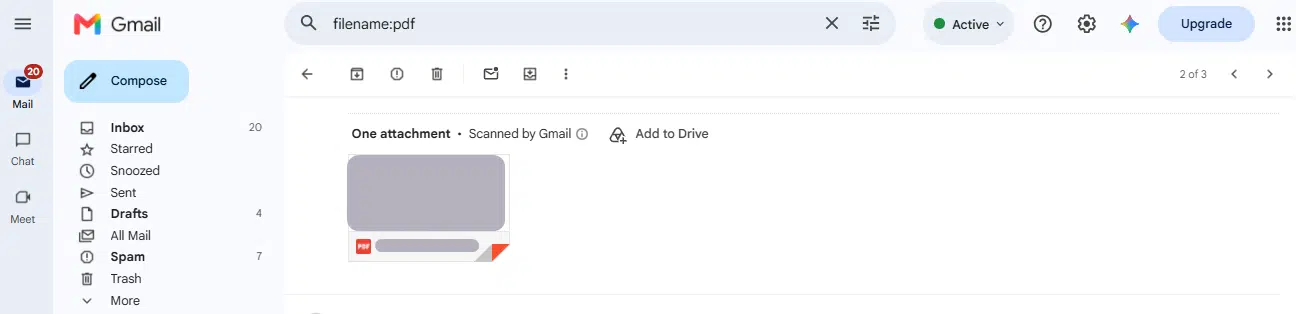
22. filename: — Search by Attachment Name or Type
filename:pdf
filename:report.docx
Use this when you remember the file type or exact file name but not who sent it or when.
If you’re on the sending side of these campaigns rather than the receiving side, the same category:promotions tab is exactly what you’re trying to avoid landing in. Getting the content itself right matters just as much as technical deliverability; our guides on personalizing email marketing content and writing better email marketing copy cover how to make campaigns worth opening in the first place.
How to Combine Multiple Search Operators?
Every operator above becomes far more powerful once you start combining them. Gmail supports a few logic keywords for this:
from:amy OR from:david
from:amy AND to:david
dinner -movie
holiday AROUND 10 vacation
OR (or { }) finds emails matching either condition. AND requires both. A minus sign excludes a term. AROUND finds two words within a certain number of words of each other, handy when you only remember two keywords from an email but not the exact phrasing.
A simple real-world combo like from:accounting has:attachment after:2026/01/01 can turn a multi-minute manual search into a one-second result.
This is just a quick look at combining operators. Since this topic deserves its own deep dive (with 15+ real-world query recipes for cleanup, recovery, and automation), we’re covering it in full detail in a dedicated guide. We’ll link it here as soon as it’s published.
Using Gmail Search Operators on Mobile
Most operators work the same way inside the Gmail app on Android and iOS, but there are a few practical differences worth knowing before you rely on mobile search the same way you do on desktop:
- No “Show search options” panel. On mobile, there’s no visual filter form; you have to type operators directly into the search bar.
- The wildcard/exact-match symbols can behave inconsistently. Symbols like
+for exact word matching don’t always behave the same as on desktop. - Sorting defaults differently. Mobile search results typically sort by relevance rather than most recent, so a date-based operator like
after:ornewer_than:becomes even more useful for getting results in a predictable order. - Tap-to-filter still works. Tapping the filter icon inside the mobile search bar gives you quick-access buttons for common filters like unread, attachments, and starred, which quietly build the operator query for you, the same way the desktop panel does.
Pro Tip: If you search often on your phone, memorize just three operators:
from:,has:attachment, andis:unread. These three alone cover the vast majority of everyday mobile searches.
Creating Filters From a Search
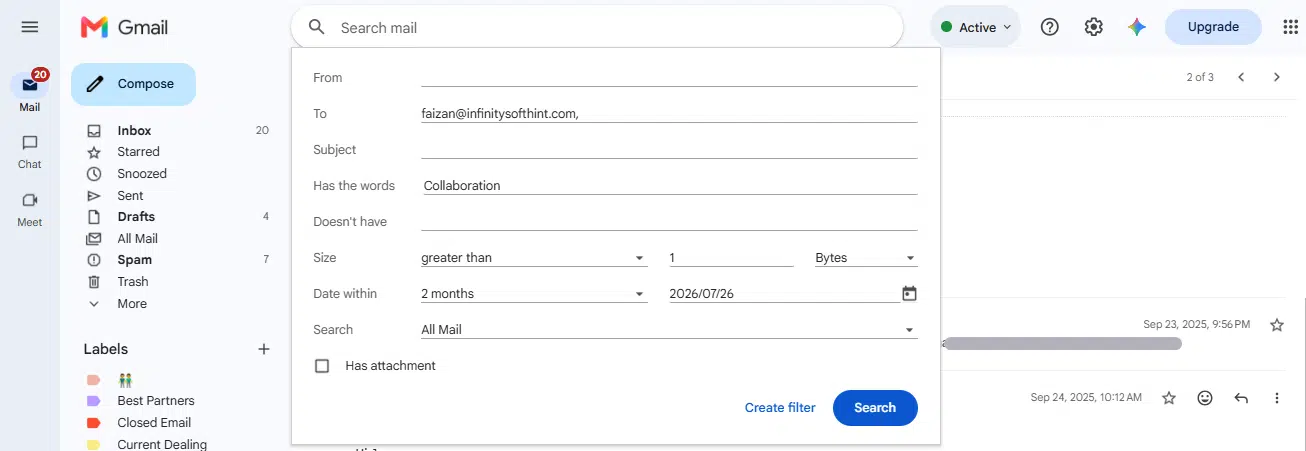
Once a search returns exactly the emails you want, Gmail lets you turn that same query into an automatic filter, so future emails matching the same criteria get handled without you lifting a finger (auto-label, auto-archive, auto-forward, or auto-delete).
The basic flow: run your search, click the filter icon inside the search bar, and choose “Create filter.” Gmail takes your existing operator query and applies it going forward. Master all filter actions and advanced criteria by following our complete step-by-step guide on how to create Gmail filters.
Filters are a big enough topic on their own (there’s a lot to cover: multi-step filters, nested conditions, common automation recipes) that we’re giving them a full standalone guide. For now, just know that literally any search you build using the operators above can become a standing filter with one click.
Gmail Search Operators for Developers (Gmail API)
If you’re building an app or script that reads a Gmail inbox, the good news is you don’t need to learn a separate query language. The Gmail API’s users.messages.list method accepts a q parameter that takes the exact same search operators covered in this guide.
GET /gmail/v1/users/me/messages?q=from:accounting has:attachment after:2026/01/01
This means any query you’ve already tested by hand in the Gmail search bar can be dropped straight into the q parameter of an API call, no translation needed. It’s one of the more convenient design decisions in the Gmail API: what you learn for everyday searching doubles as the filtering syntax for automation, scripts, and integrations.
Pro Tip: If you’re building a workflow around this (auto-labeling incoming invoices, archiving old newsletters, syncing specific threads to another tool), test the query manually in Gmail’s search bar first. It’s much faster to debug a query by eye than by running API calls back and forth.
Common Mistakes to Avoid
A few small habits cause most of the “why isn’t this working” frustration people run into with search operators:
- Adding a space after the colon.
from: sarahis not the same asfrom:sarah. Gmail treats the space as breaking the operator, so it stops filtering correctly. - Using the wrong date format. Gmail expects
YYYY/MM/DDforafter:andbefore:. Typing dates inDD/MM/YYYYorMM-DD-YYYYformat won’t return the results you expect. - Forgetting operators combine with a simple space, not a comma.
from:sarah, has:attachment(with a comma) won’t work the wayfrom:sarah has:attachmentdoes. - Assuming
-excludes an entire conversation. Gmail groups emails into conversation threads. If you search-is:starred, Gmail can still show a conversation as long as at least one message in that thread isn’t starred, even if other messages in the same thread are. This trips up a lot of people expecting exact message-level exclusion. - Relying on operators that don’t actually exist. As covered earlier,
has:unsubscribeis a common example of an operator repeated across blog posts that Gmail simply doesn’t support. When in doubt, cross-check against Google’s own support page rather than a random blog. - Expect identical behavior on mobile. As covered in the mobile section, exact-match symbols and the visual filter panel don’t always behave the same way in the app as they do on desktop.
Conclusion
Gmail search operators turn a cluttered, ever-growing inbox into something you can navigate in seconds rather than minutes. Whether you’re chasing down an old invoice, cleaning up years of newsletters, or building an automated workflow through the Gmail API, the same handful of operators covered in this guide (from:, has:attachment, after:/before:, label:, and a few others) will cover the vast majority of what you ever need to search for.
Start small: pick two or three operators from this list that solve a problem you deal with regularly, and use them for a week. Once they become second nature, layer in combinations, and eventually turn your favorite searches into standing filters so Gmail does the sorting for you automatically going forward.