

To search Gmail by date, use core date operators directly in the search bar: after:YYYY/MM/DD to find emails received after a date, before:YYYY/MM/DD for emails before a date, or combine both to define an exact date range (after:2026/01/01 before:2026/01/31). For relative searches, use older_than:1y or newer_than:7d. Always use the YYYY/MM/DD format with an operator prefix.
Quick Reference: Gmail Date Search Cheat Sheet
Before diving into the detailed rules, here is a quick copy-paste cheatsheet for the most common date search queries:
| Search Goal | Search Syntax | Copy-Paste Example |
|---|---|---|
| Emails received after a date | after:YYYY/MM/DD | after:2026/05/15 |
| Emails received before a date | before:YYYY/MM/DD | before:2026/01/01 |
| Exact date range (Between dates) | after:START before:END | after:2026/01/01 before:2026/01/31 |
| Specific calendar year | after:YYYY/01/01 before:YYYY/12/31 | after:2025/12/31 before:2027/01/01 |
| Older than X days / months / years | older_than:[number][d/m/y] | older_than:6m |
| Newer than X days / months / years | newer_than:[number][d/m/y] | newer_than:14d |
| Combine with sender or attachment | after:DATE from:NAME has:attachment | after:2026/01/01 from:john has:attachment |
Gmail Date Format: Why YYYY/MM/DD Matters
The single most common reason Gmail date searches fail is entering dates the wrong way.
Gmail strictly adheres to the international ISO-style standard: YYYY/MM/DD (4-digit year, 2-digit month, 2-digit day).
Correct:   after:2026/09/25
Incorrect: after:25/09/2026
Incorrect: after:09/25/2026
What Happens If You Use the Wrong Format?
- Entering regional formats (
DD/MM/YYYYorMM/DD/YYYY): Gmail will either return zero search results or misinterpret ambiguous numbers (for instance, reading05/06/2026as May 6 instead of June 5). - Entering a raw date without an operator prefix: If you type just
2026/09/25into the search box withoutafter:orbefore:, Gmail treats it as a standard text keyword search. Unless an email explicitly contains those characters in its body or subject line, Gmail returns no results.
Note on Delimiters: Always stick to forward slashes (
/). While certain browser environments may parse dashes (-), forward slashes (2026/09/25) guarantee consistent parsing across desktop web, mobile web, and official Gmail apps.
How to Search Gmail with after: and before:
The after: and before: operators are the foundation of filtering your inbox chronologically.
after:retrieves messages received after midnight (00:00:00) on the specified date.before:retrieves messages received prior to the specified date.
Example Search Queries
To find all emails received since September 1st, 2026:
after:2026/09/01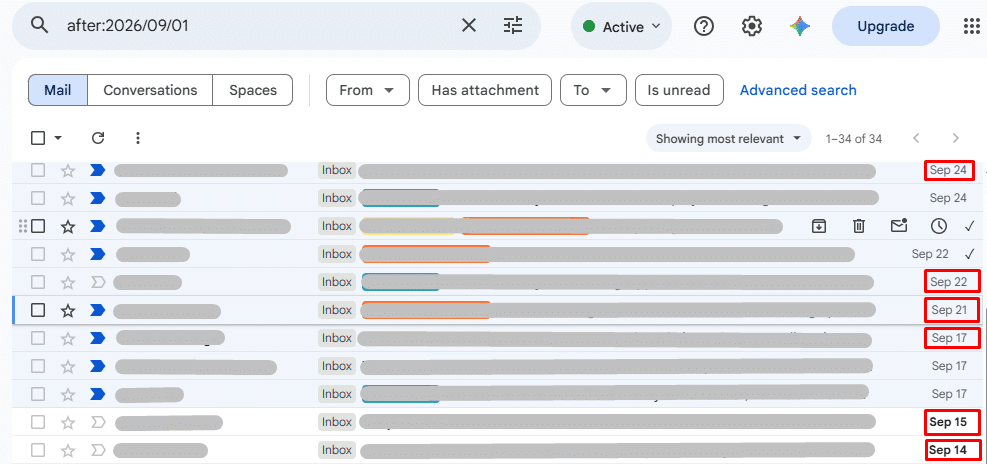
To locate older archive emails sent before September 30th, 2024:
before:2024/10/30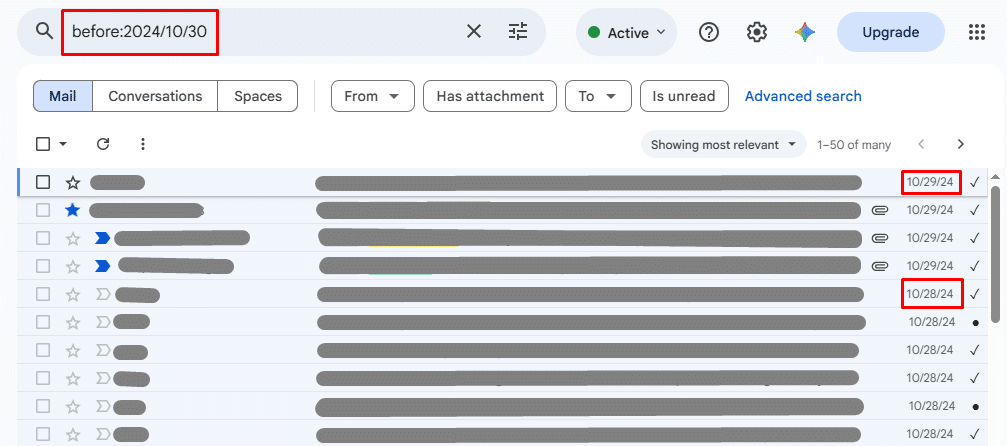
Are the Start and End Dates Included in the Results?
A frequent point of confusion is whether the date you type into after: or before: is actually included in the search list.
In real-world tests:
after:YYYY/MM/DDis inclusive: Searchingafter:2026/09/25displays emails received on September 25th itself. This is because Gmail evaluates the query astimestamp >= 2026/09/25 00:00:00 local time.before:YYYY/MM/DDcan appear inclusive near date boundaries: Strictly speaking,before:2026/09/25targets emails before2026/09/25 00:00:00. However, if an incoming email was dispatched from a different time zone or logged around midnight, boundary timestamps may still surface on that day.
Pro Tip: If you want to ensure emails from September 25th are entirely excluded when searching backwards, bump your search boundary back by one day:
before:2026/09/24.
Does Gmail Use Your Local Time Zone or UTC?
Gmail parses your date queries using the local time zone set on your computer or Google Account settings, but incoming email headers contain timestamps generated in the sender’s time zone or UTC.
Because of this conversion, an email received late at night (e.g., 11:45 PM on September 24 in your local time zone) might correspond to the morning of September 25 in UTC. If you are hunting for an email near midnight, expand your date range by +1 or -1 day to prevent edge-case time slips.
How to Search a Specific Date Range in Gmail?
To isolate emails received during a specific project timeline, billing cycle, or vacation window, combine after: and before: in a single search string.
Example: Emails Between Two Specific Dates
To find all correspondence sent or received between March 1, 2026, and March 20, 2026:
after:2026/03/01 before:2026/03/21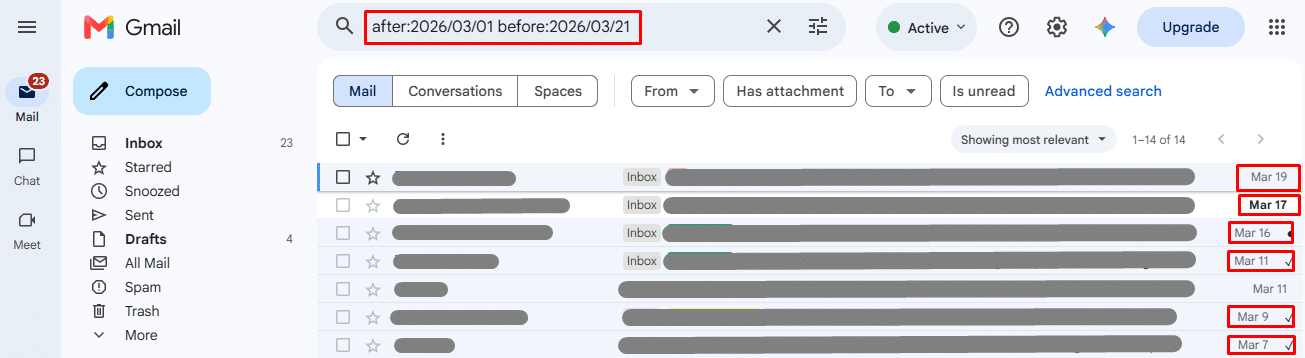
(Notice we set the before: cutoff to March 21 to ensure all emails from March 20 are fully captured).
Example: Search a Specific Month
To view every email from January 2026:
after:2025/12/31 before:2026/02/01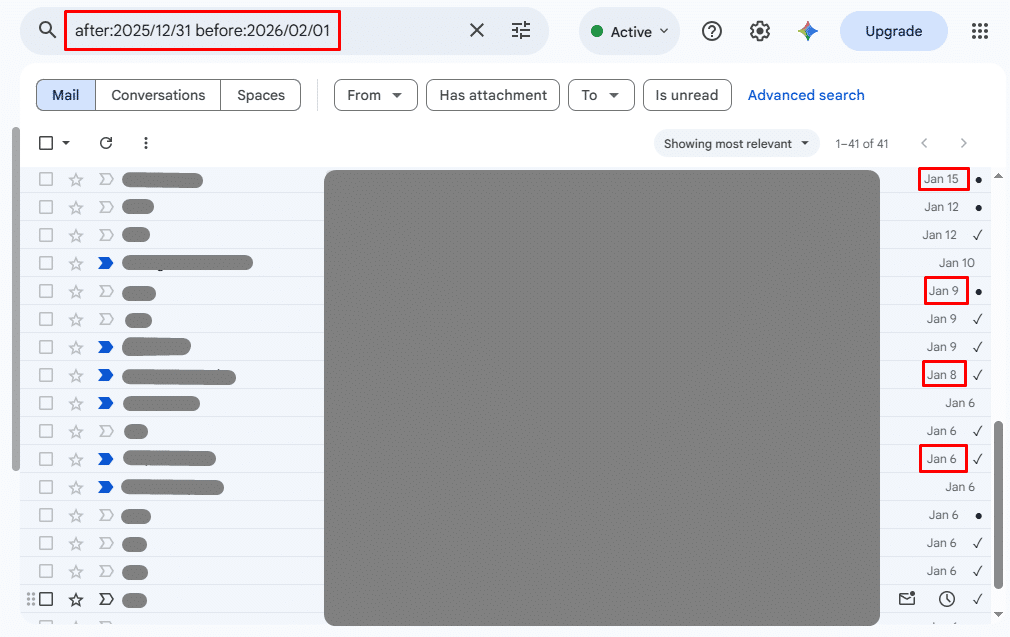
How Do I Search Gmail for a Specific Year?
If you need tax documents, invoices, or logs from a past calendar year (such as 2025), set the after: parameter to the final day of the preceding year and before: to the first day of the subsequent year:
after:2024/12/31 before:2026/01/01This isolates every message received between January 1, 2025, and December 31, 2025.
Relative Date Search: older_than: and newer_than:
If you do not want to calculate exact calendar dates, Gmail provides relative date search operators: older_than: and newer_than:. These search backwards dynamically from the present moment.
Time Units Explained
Both operators require a numeric value followed by an abbreviated time unit:
d= Daysm= Monthsy= Years
newer_than:7d    (Emails from the last 7 days)
older_than:3m    (Emails received more than 3 months ago)
older_than:2y    (Emails older than 2 years from today)
What Is the Difference Between before: and older_than:?
before:requires an absolute calendar date formatted asYYYY/MM/DD(e.g.,before:2025/06/01). It remains fixed over time.older_than:requires a relative time duration (e.g.,older_than:1y). As time moves forward, the search boundary moves with it.
(Note: Gmail also has legacy shorthand aliases: older: works identically to before:, while newer: functions identically to after:. For clarity, modern users should stick to after:/before: for exact dates and older_than:/newer_than: for relative units).
Can You Create a Filter Based on Date?
While many users want an automated filter to auto-archive or label emails older than 30 days, Gmail filters do not support dynamic relative date operators like older_than:. Filters are designed to trigger on incoming new emails, not retroactive sweeps.
However, Gmail’s search options dialog provides a dedicated “Date within” interface for manual searches:
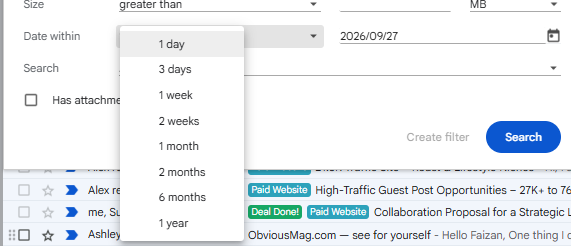
When you click the Show search options slider icon in the search bar, the search builder offers the Date within dropdown with the following presets:
1 day3 days1 week2 weeks1 month2 months6 months1 year
This allows you to select a central reference date (such as 2026/09/27) and broaden the window automatically without manually typing operator syntax. For permanent incoming organization rules, explore our complete guide on creating and managing Gmail search filters.
Combining Date Search with Sender, Attachments, or Labels
Date parameters become exponentially more effective when combined with other Gmail search operators:
1. Invoices or Statements with Attachments
Find invoices received within a specific fiscal quarter:
after:2026/01/01 before:2026/04/01 filename:pdf "invoice"2. Specific Sender Within a Date Range
Filter discussions from a client or team member during a single month:
from:alex@example.com after:2026/05/01 before:2026/06/013. Cleaning Large Files Older Than 1 Year
Reclaim Google Drive/Gmail storage quota by identifying heavy emails from past years:
older_than:1y size:10M has:attachmentHow to Search Gmail by Date on iPhone and Android
You do not need a desktop browser to filter emails by date. The official Gmail app on iOS and Android supports two methods:
Method 1: Search Chips (Easiest)
- Open the Gmail app and type any general search keyword or tap the search bar.
- Below the search box, scroll horizontally through the search filter chips.
- Tap the Date chip and select from presets like Last 7 days, Last 30 days, or tap Custom range to select dates from a visual calendar.
Method 2: Typing Operators Directly
If you need precision, type exact operators directly into the mobile search bar just like on a computer:
after:2026/01/01 has:attachmentWhy Is My Gmail Date Search Not Working?
If running a date search yields unexpected or empty results, verify these three checklist items:
- Incorrect Separators or Format: Ensure dates are formatted strictly as
YYYY/MM/DD. Dates formatted asDD/MM/YYYYor bare dates entered without anafter:orbefore:prefix will fail. - Missing
in:anywhere(Excluded Folders): Standard Gmail searches omit the Trash and Spam folders by default. If you suspect an old email was deleted or caught in the spam filter, addin:anywhere:after:2025/01/01 in:anywhere "contract" - Typo in Operator Names: A missing colon (
after 2026/01/01instead ofafter:2026/01/01) or mixing upolder:witholder_than:will break the search parser.
Summary and Next Steps
Searching your inbox chronologically is one of the fastest ways to maintain inbox zero and locate forgotten correspondence. By mastering after:, before:, and relative time operators like older_than:, you can pinpoint any message in seconds without manual scrolling.
To learn how to combine date criteria with boolean operators (AND, OR, NOT) and label selectors, visit our comprehensive directory of advanced Gmail search operators.