A Gmail filter is an automated rule that screens incoming messages based on specific criteria, such as sender, subject line, or keywords, and instantly performs actions like labeling, archiving, starring, or deleting them. You create filters directly from the search bar or email view to route routine communication away from your primary inbox without manual sorting.
What Are Gmail Filters and What Can They Do?
Gmail filters function as server-side automation scripts built directly into your inbox. Instead of relying on manual sorting throughout the workday, filters run in the background 24/7, processing incoming mail the instant it hits Google’s mail servers.
Research published in Heliyon (Cell Press) demonstrates that rule-based classification models and automated mail handlers remain foundational for separating critical signals from non-urgent operational noise. When configured correctly, filters eliminate cognitive fatigue by ensuring that you encounter only messages that require active human judgment, whether managing client inquiries or reviewing email marketing content.
What Filters Can Do Automatically
When an incoming email matches the conditions you define, Gmail executes one or more programmatic actions simultaneously:
- Bypass the primary inbox: Route newsletters, receipts, and system alerts to dedicated folders using the Skip the Inbox (Archive it) action.
- Categorize with visual tags: Attach custom, color-coded tags to incoming threads for immediate visual prioritization.
- Enforce read and priority status: Automatically mark transactional confirmations as read, star high-value client threads, or set the importance marker.
- Prevent false spam triggers: Ensure mission-critical notifications, vendor communications, or customer domains never land in your Spam folder.
- Automated routing and cleanup: Forward specific invoices directly to the accounting department or instantly trash abusive automated logs.
What Is the Difference Between Gmail Filters and Labels?
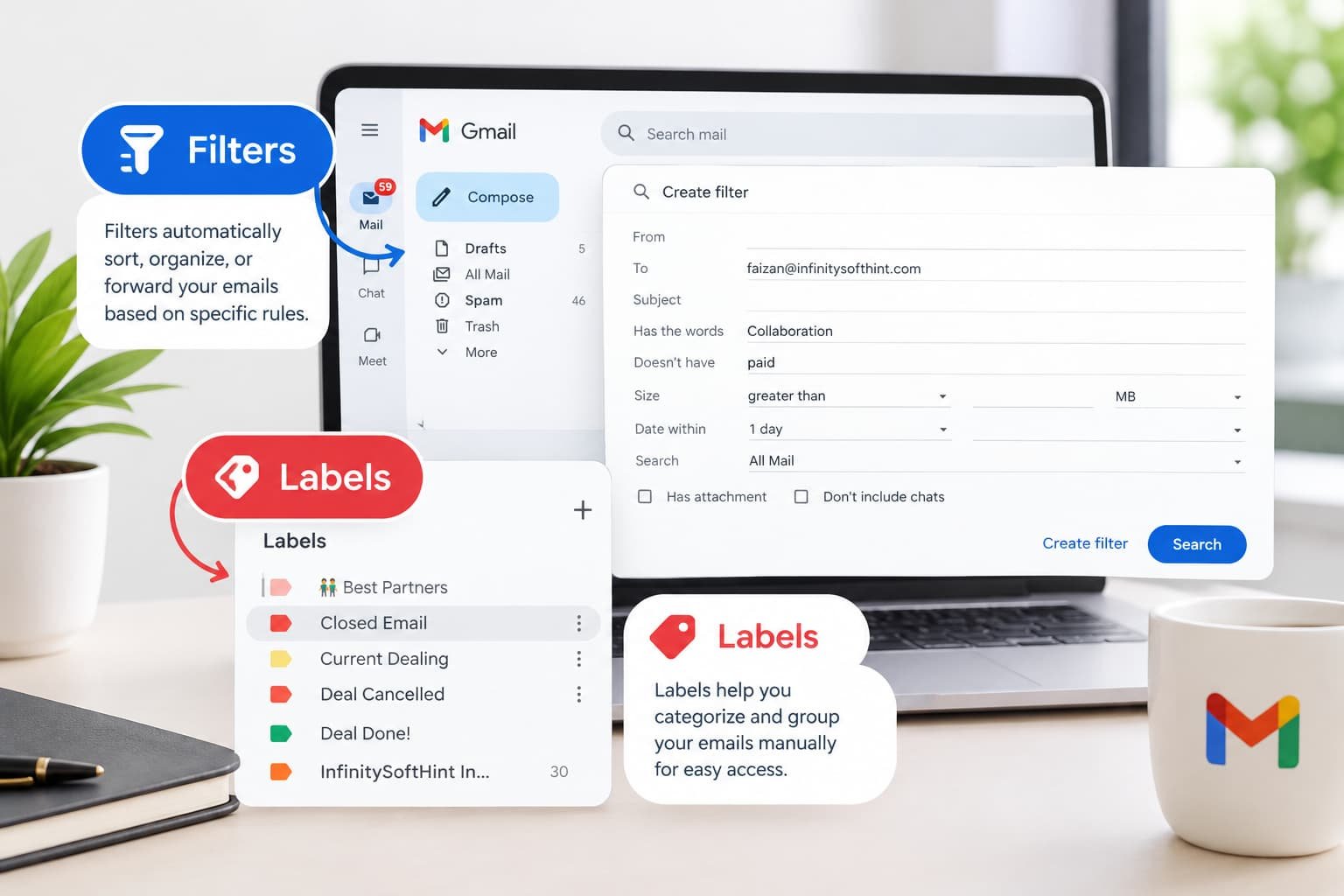
Gmail labels are visual tags and storage containers, while Gmail filters are the automated routing rules that apply those tags or process incoming emails. Labels define where a message belongs and how it looks; filters do the actual sorting without your intervention.
Unlike traditional email clients such as Microsoft Outlook, which move messages into rigid, single-location directories, Gmail operates on an underlying flat database in which a single message can have multiple labels simultaneously.
| Dimension | Gmail Labels | Gmail Filters |
|---|---|---|
| Primary Function | Visual organization, categorization, and folder-style storage | Automated rule execution and email processing |
| Trigger Mechanism | Applied manually by the user or programmatically by a filter | Runs automatically when emails arrive or when manually executed |
| Storage Impact | Changes metadata tags; does not alter email destination | Can bypass the inbox, apply labels, delete, or forward |
| Visibility | Visible in the left sidebar and as colored tags on subject lines | Hidden background rules managed under Settings |
How to Create a Gmail Filter (Step by Step)
Creating a filter in Gmail requires two distinct stages: defining the search criteria (which messages to target) and selecting the resulting actions (what Gmail must do with them).
Method 1: Create a Filter from the Search Options
This is the standard, most versatile approach for constructing custom rules from scratch:
1. Open Gmail in your desktop web browser.
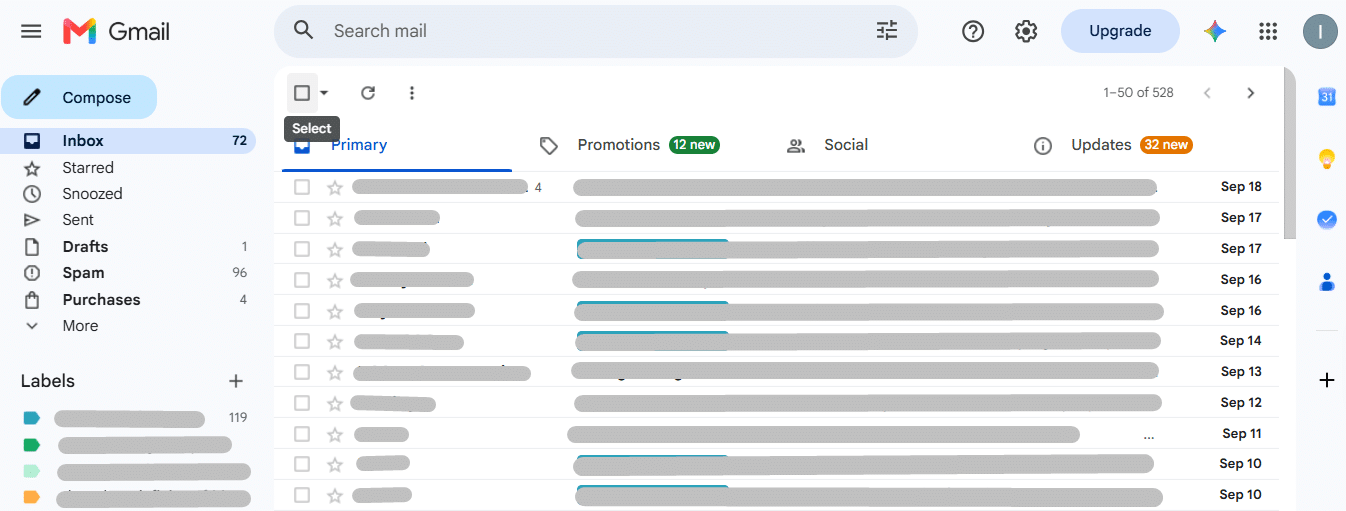
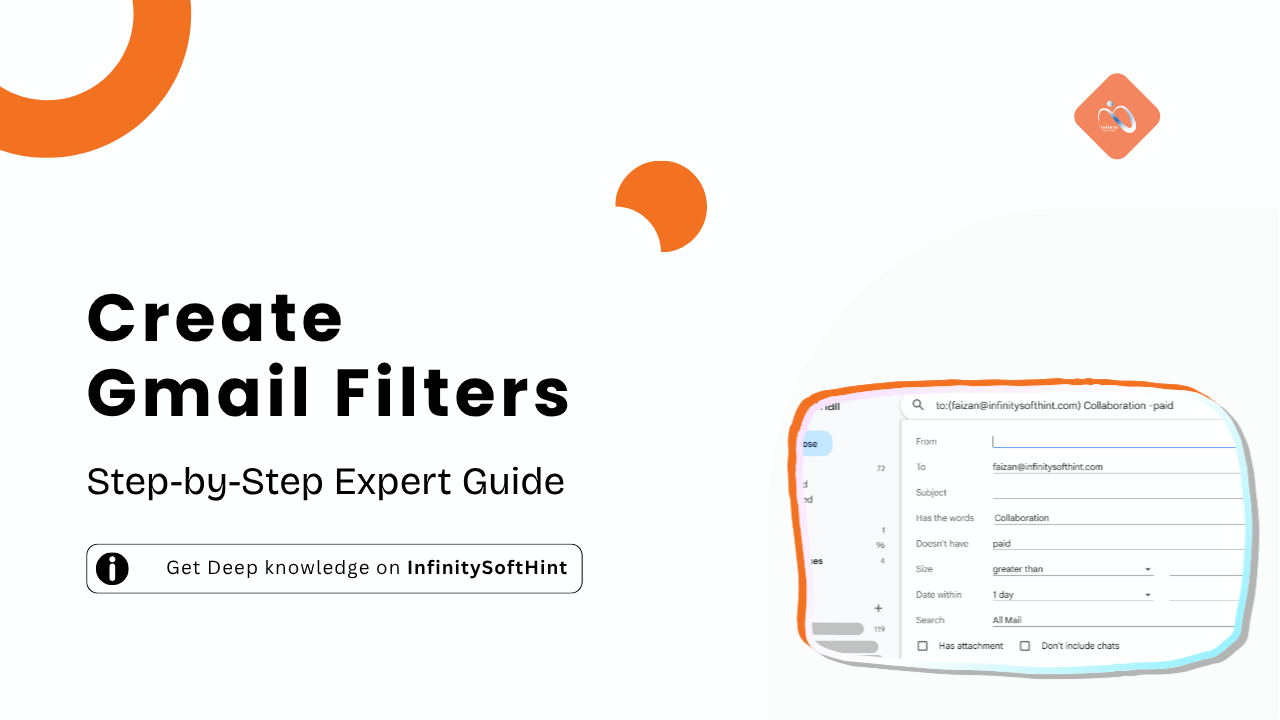
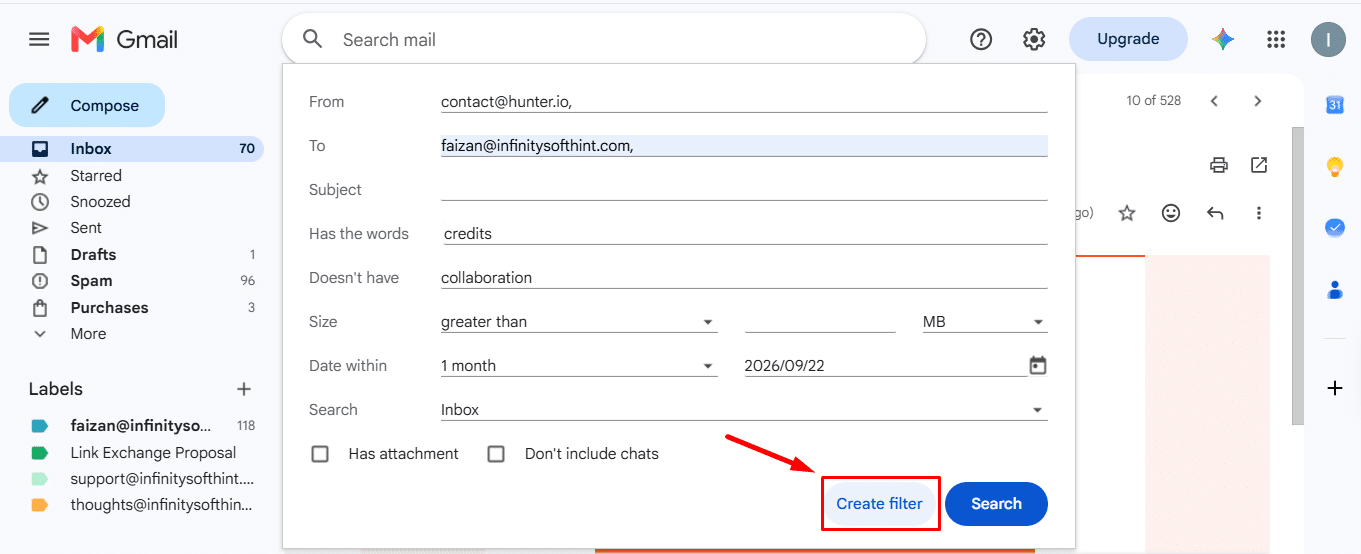
2. In the search box at the top, click the Show search options icon (the slider icon on the far right of the search input).

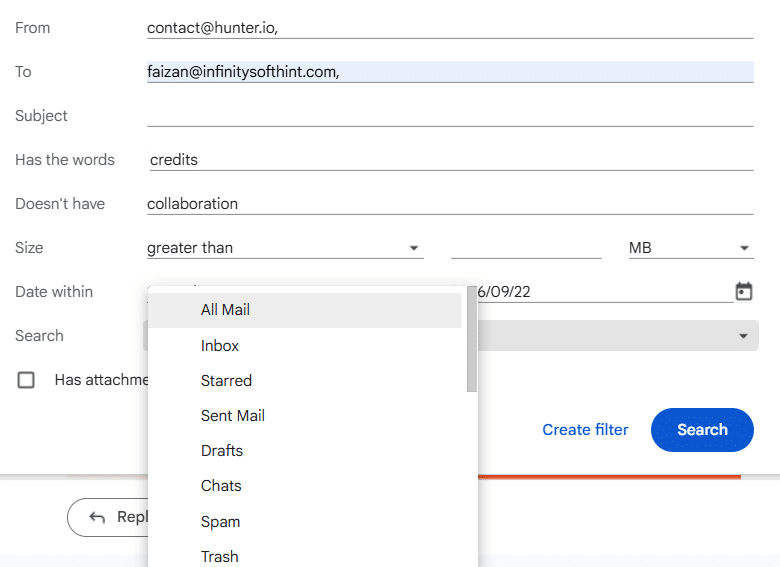
3. Enter your conditions in the respective fields: From, To, Subject, or Has the words.
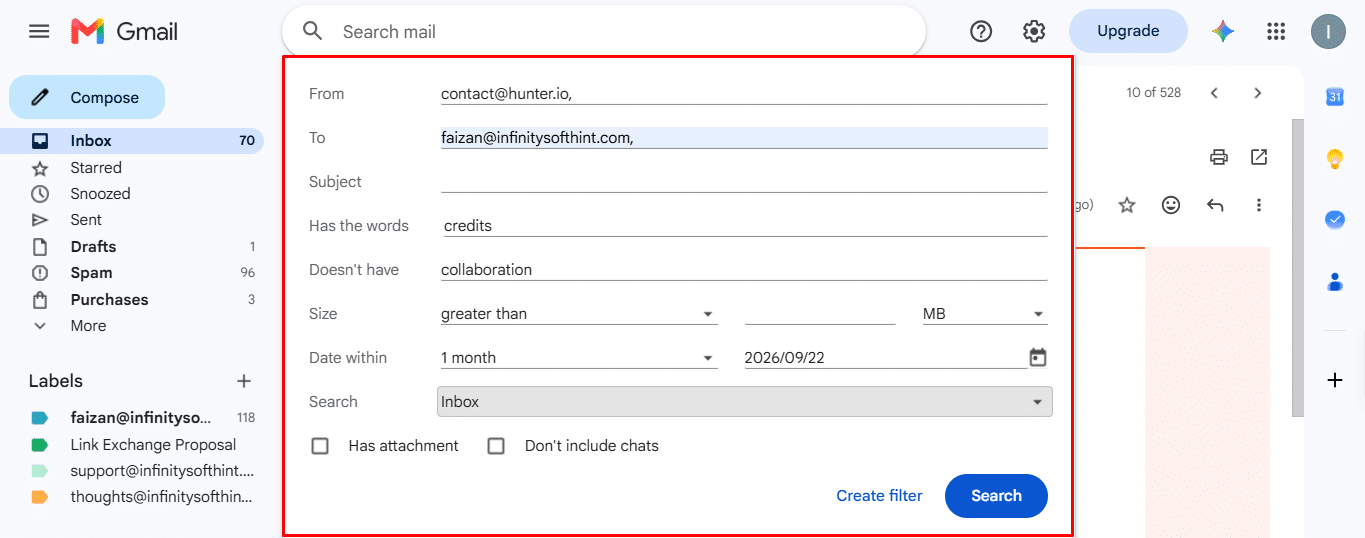
4. Click Search to preview the matching emails and verify your query accuracy.
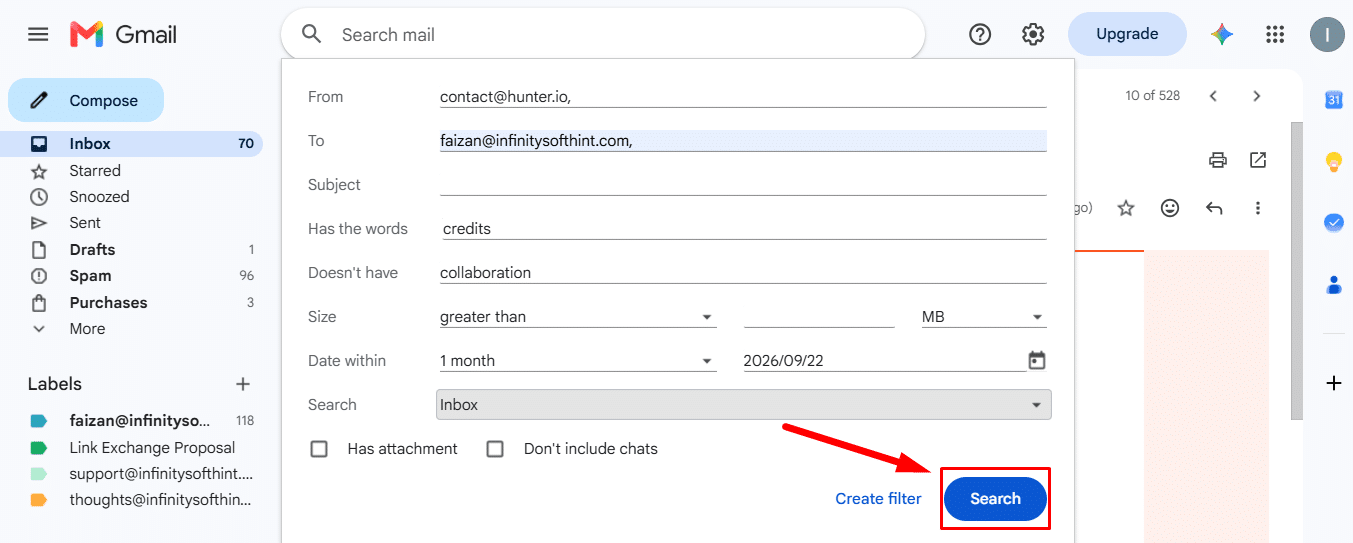
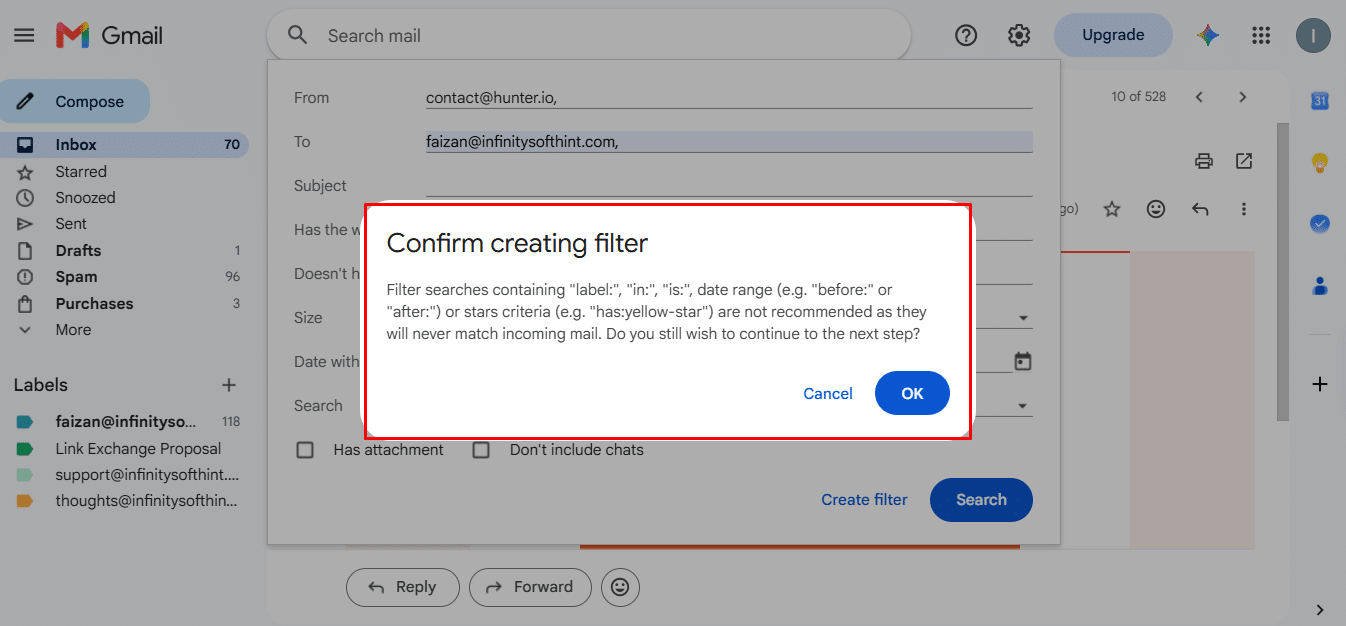
5. Re-open the search options panel and click Create filter at the bottom right.
6. Select your desired actions (e.g., Skip the Inbox, Apply the label).
7. Click Create filter to activate the rule.
Method 2: Create a Filter from an Existing Email
If your inbox already contains an example of the message type you want to manage:
- Open your inbox and select the checkbox next to the target email (or open the message directly).
- Click the More button (three vertical dots) in the top toolbar or message header.
- Click Filter messages like these.
- Gmail automatically populates the From field with that sender’s address. Adjust criteria if needed.
- Click Create filter at the bottom of the pop-up modal.
- Choose your automated actions and confirm by clicking Create filter.
Method 3: Create a Filter from Settings
For administrative overviews or batch configurations:
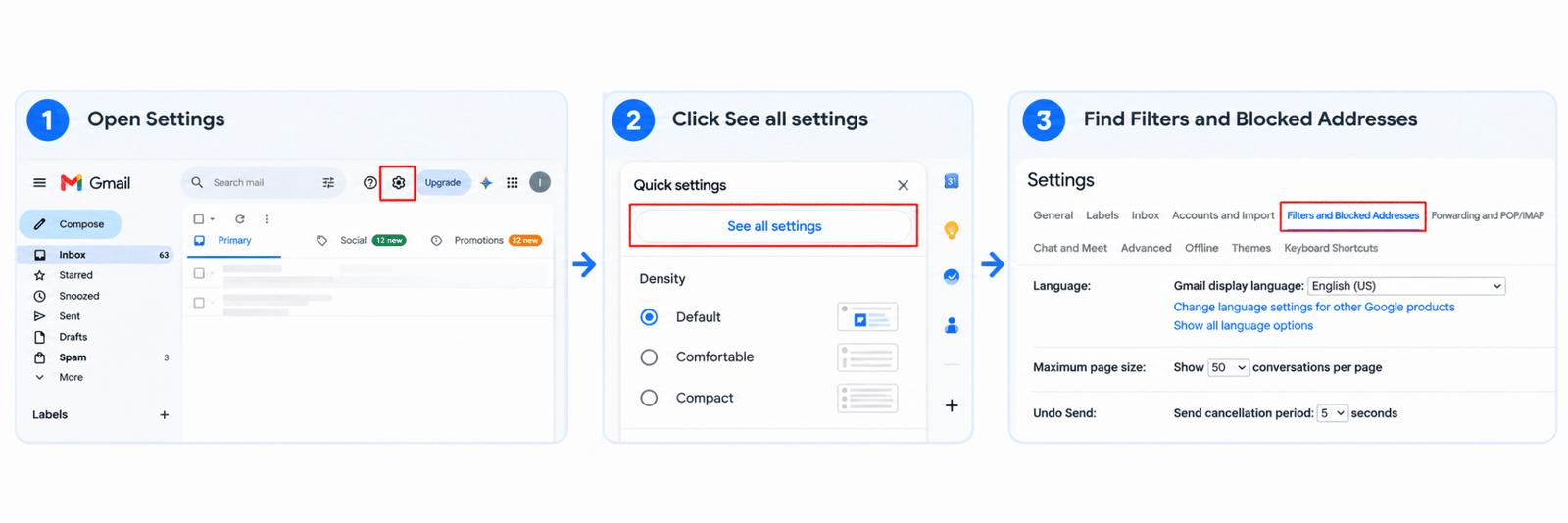
- Click the Settings gear icon in the top-right corner of Gmail and select See all settings.
- Navigate to the Filters and Blocked Addresses tab.
- Scroll past your existing rules and click Create a new filter.
- Fill in your criteria parameters in the search drawer.
- Click Create filter, set your actions, and confirm.
What “Also Apply Filter to Matching Conversations” Does
At the bottom of the filter action selection window sits a critical checkbox: Also apply filter to [X] matching conversations.
When this box is left unchecked, Gmail applies your new rule exclusively to incoming messages received after it is created. Checking this box instructs Gmail’s engine to scan backward through your entire historical database, applying your selected actions to every archived, read, or existing email that matches the search parameters.
Do Gmail Filters Apply to Old Emails?
No, Gmail filters do not apply to old emails by default; they only run on incoming messages. To process historical emails, you must actively check the “Also apply filter to matching conversations” box during creation or update.
If you omit this checkbox when saving, your past messages remain completely untouched in their original state. You can trigger retroactive processing at any time by navigating to your settings, clicking Edit on the rule, clicking Continue, checking that retroactive box, and clicking Update filter.
Gmail Filter Criteria Explained: From, To, Subject, and Has the Words
The search parameters in the filter configuration modal determine exactly which emails trigger your rule according to official Gmail search documentation.
From:             newsletter@company.com
To:               billing@mycompany.com
Subject:          Invoice OR Receipt
Has the words:    "tax year" -draft
Doesn't have:     unsubscribe
[X] Has attachment      Size: greater than  [ 5 ]  [ MB ]
Filter by Sender or Recipient
The From and To fields isolate correspondence based on sending source or destination address:
- Domain-level matching: Entering
@stripe.comin the From field captures all automated receipts, billing updates, and notifications sent from Stripe, without needing individual team members’ addresses. - Specific senders: Entering an exact email address targets individual correspondence cleanly.
- Alias targeting: If you utilize email aliases or Google Workspace distribution groups, targeting the To field ensures messages addressed to
support@yourdomain.comorme+finance@gmail.comreceive distinct handling.
Filter by Subject (Contains)
The Subject parameter evaluates words that appear strictly within the message headline (learn how to write effective email subject lines for better response rates).
Typing invoice into this field captures subjects such as “Your Monthly Invoice” or “Invoice #4029”. Gmail’s search algorithm defaults to tokenized keyword matching rather than exact sequence matching unless explicit punctuation rules are provided.
“Has the Words” vs “Doesn’t Have”
These two fields scan the entire content payload, including the email body, header metadata, subject lines, and sender display names:
- Has the words: Matches messages containing the specified terms anywhere in the body text or headers. You can pass raw Gmail search operators here, including Boolean expressions and grouping syntax.
- Doesn’t have: Acts as a negative gatekeeper. If the specified terms appear anywhere in the email, the filter aborts execution, even if all other criteria match.
Filter by Size and Attachment
The filter modal lets you target emails based on payload weight (e.g., larger than 10 MB) or flag messages containing physical file payloads using the Has attachment checkbox. This is ideal for triaging data-heavy threads before they exhaust your shared Google Workspace storage allocation.
How to Use OR, NOT and Exact Phrases in a Filter
Advanced filtering requires Boolean logic and precise search syntax to prevent broad rules from creating unintended side effects.
Filter Multiple Senders with OR
When managing multiple vendors or team members under a single unified rule, combine addresses using uppercase OR or wrap them in parentheses:
From: (notifications@github.com OR alerts@datadoghq.com OR status@pagerduty.com)
Note: The operator OR must always be capitalized. Writing lowercase causes Gmail to search for the literal English word “or” inside the message body.
Exclude a Sender or Word from a Filter
To prevent specific automated messages from triggering a broad rule, use the hyphen/minus prefix (-):
Subject: “Weekly Update” -draft
From: @acme.com -boss@acme.com
In the second example, Gmail processes all internal company emails from the acme.com domain while explicitly excluding emails originating from your direct manager.
Match an Exact Phrase with Quotes
By default, searching for quarterly financial review returns emails containing those three words scattered across different paragraphs. Wrapping terms in double quotation marks ("") forces Gmail to match that exact phrase in unbroken order:
Has the words: “Quarterly Financial Review”
Gmail Filter Syntax Cheat Sheet
| Operator / Syntax | Practical Purpose | Example Usage in “Has the words” |
|---|---|---|
OR | Matches any one of multiple criteria | from:(boss@co.com OR vip@client.com) |
- (Minus/NOT) | Excludes a word, sender, or domain | from:@company.com -from:hr@company.com |
"" (Quotes) | Enforces exact, unbroken phrase match | "wire transfer details" |
() (Grouping) | Applies actions across grouped terms | subject:(contract OR invoice OR payment) |
has:attachment | Confirms an attached file payload | has:attachment filename:pdf |
filename: | Targets specific file extensions | filename:xlsx |
Filter Actions: What Should Gmail Do with Matching Emails?
Once Gmail identifies matching emails, it presents a checklist of automated routing actions. You can combine multiple actions within a single filter.
[X] Skip the Inbox (Archive it)
[X] Mark as read
[ ] Star it
[X] Apply the label: [ Newsletters/Weekly v ]
[ ] Forward it to: [ accounting@domain.com v ]
[ ] Delete it
[X] Never send it to Spam
[X] Always mark it as important
[ ] Never mark it as important
[ ] Categorize as: [ Updates v ]
[X] Also apply filter to 42 matching conversations.
Skip the Inbox and Apply a Label
This combination forms the cornerstone of inbox zero management:
- Checking Skip the Inbox (Archive it) removes the
INBOXsystem tag, preventing the message from cluttering your primary workspace. - Checking Apply the label attaches a specified tag so the message appears under that category folder in your left-hand sidebar for scheduled, batch review.
Mark as Read, Star or Mark as Important
- Mark as read: Silences visual notification badges on transactional receipts or background server logs.
- Star it: Flags high-priority communications for immediate review on mobile devices.
- Always mark it as important: Trains Google’s algorithmic priority inbox to treat specific vendor or partner accounts with urgency.
Never Send to Spam
Certain automated systems, such as client CRM form submissions or internal billing applications, often fail strict DMARC or SPF checks. Selecting Never send it to Spam adds an automated whitelist rule that keeps these messages in your operational stream.
Forward or Delete (With Safety Warning)
Forward it: Routes incoming messages to external stakeholders (such as sending legal notifications to outside counsel). Forwarding addresses must be verified in your Gmail account settings before they become selectable in a filter.
Delete it: Bypasses both the inbox and archive, routing messages directly to the Trash folder.
⚠️ Warning: The Delete it action permanently strips messages from your inbox. Items routed to the Trash are automatically destroyed after 30 days. Never apply the Delete action to loose keyword filters like Has the words: unsubscribe; you risk trashing critical communications containing unsubscribe links in signature footers.
5 Copy-Paste Gmail Filter Examples
Copy these battle-tested configurations directly into your Gmail search options to reclaim control of your daily workflow.
Keeps educational reads and industry digests out of your daily work view so you can read them in batches:
- Has the words:
unsubscribe OR "view in browser" OR "opt out" - Doesn’t have:
receipt OR invoice OR order OR security - Actions:
[X]Skip the Inbox (Archive it)[X]Apply the label:Read/Newsletters[X]Categorize as:Promotions
2. Priority Client Emails
Surfaces high-stakes client communications immediately across all your devices to maintain strong email marketing personalization:
- From:
(@clientalpha.com OR @partnerbeta.com) - Actions:
[X]Star it[X]Always mark it as important[X]Apply the label:Clients/Active[X]Never send it to Spam
3. Receipts and Invoices
Consolidates all tax-deductible purchases and SaaS invoices for seamless accounting reconciliation:
- Subject:
(Invoice OR Receipt OR "Billing Statement" OR "Order Confirmation") - Has the words:
(total OR charged OR paid OR payment) - Actions:
[X]Skip the Inbox (Archive it)[X]Apply the label:Finance/Receipts
4. Job Application Tracker
Captures automated responses and interview requests during career outreach campaigns:
- Subject:
("Application Received" OR "Interview" OR "Candidate" OR "Offer") - Actions:
[X]Apply the label:Career/Applications[X]Star it[X]Always mark it as important
5. Promotions Cleanup
Eliminates repetitive flash sales, discount offers, and promotional spam:
- Has the words:
("flash sale" OR "discount code" OR "limited time offer" OR "promo code") - Actions:
[X]Skip the Inbox (Archive it)[X]Mark as read[X]Apply the label: Clutter/Promotions
Where to Find, Edit, Export and Delete Gmail Filters
Managing your active filter architecture occurs entirely within Gmail’s global configuration settings:
1. Click the Gear icon in the top-right corner of Gmail and select See all settings.
2. Click the Filters and Blocked Addresses tab.
3. Every active filter is listed alongside its criteria and associated actions.
Filters and Blocked Addresses View:
————————————————————————————-
Matches: from:(newsletter@domain.com) [Edit] [Delete]
Do this: Skip Inbox, Apply label “Newsletters”
Matches: subject:(“Invoice” OR “Receipt”) [Edit] [Delete]
Do this: Apply label “Finance”, Never mark as spam
————————————————————————————-
[Select all] [Export] [Delete selected] [Import filters] [Create a new filter]
Where Are Gmail Filters Stored?
Gmail filters are stored server-side within the Filters and Blocked Addresses tab under See all settings. Because rules reside on Google’s cloud infrastructure, any rule created in your desktop browser automatically applies to incoming mail, regardless of which device you use to check your messages.
How Many Filters Can You Create in Gmail?
Gmail allows up to 1,000 filters per account according to the Google Workspace Gmail API documentation. While consumer interfaces do not display an active counter, reaching this technical threshold causes creation attempts to fail until outdated rules are pruned or consolidated.
If you manage hundreds of discrete rules, consolidate individual sender filters using parentheses and Boolean OR syntax to keep your total rule count well below system thresholds.
How Do You Stop a Gmail Filter from Working?
Gmail does not offer a temporary pause button for filters; you must either delete the rule or modify its criteria to stop it from matching.
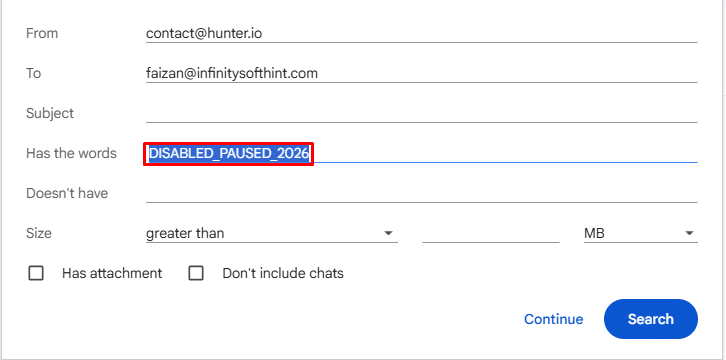
To deactivate a filter without losing its configuration:
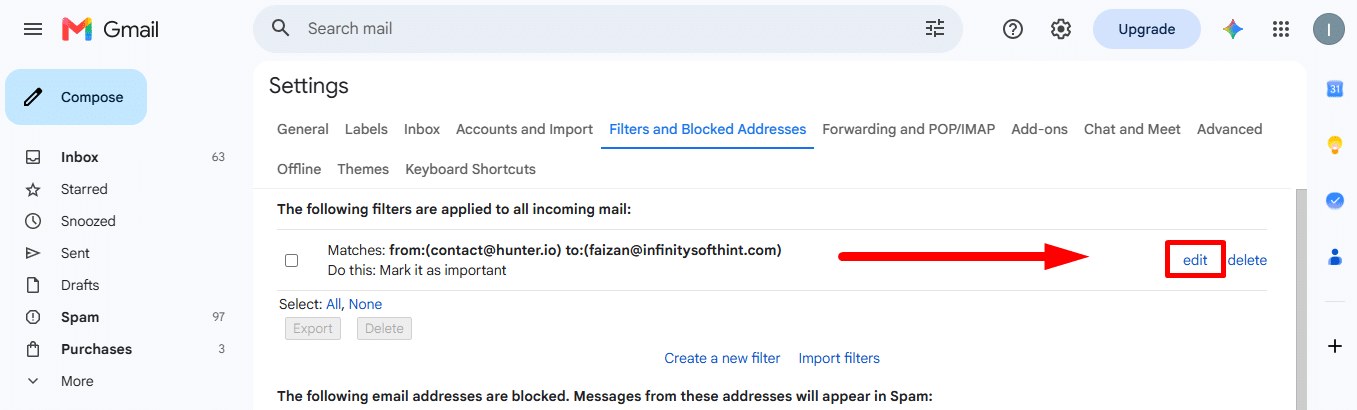
- Open Settings > See all settings > Filters and Blocked Addresses.
- Click Edit next to the target rule.
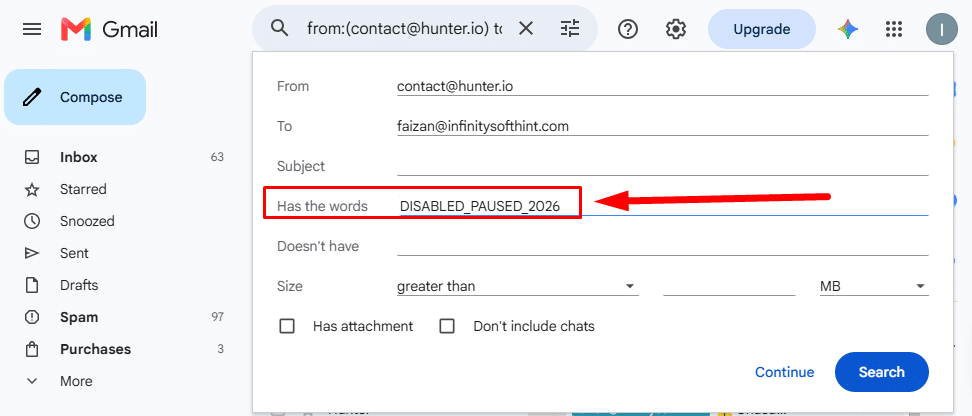
- Add an impossible text string (such as
DISABLED_PAUSED_2026) to the Has the words field.
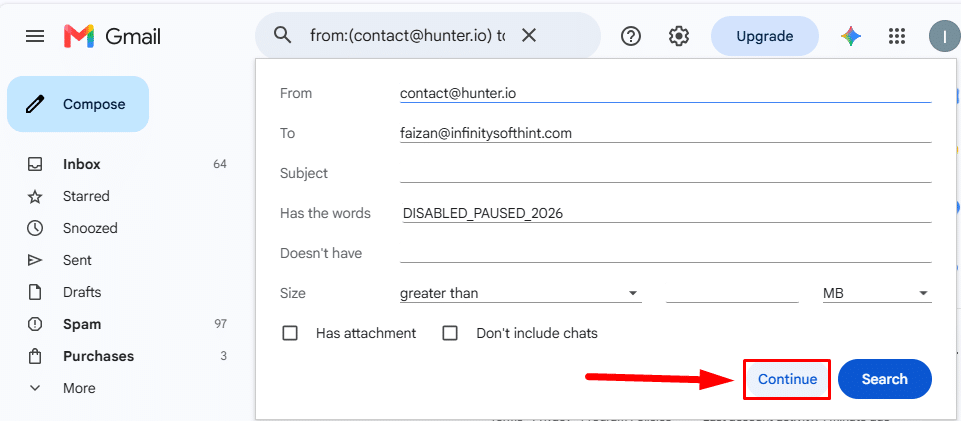
- Click Continue and save by clicking Update filter.
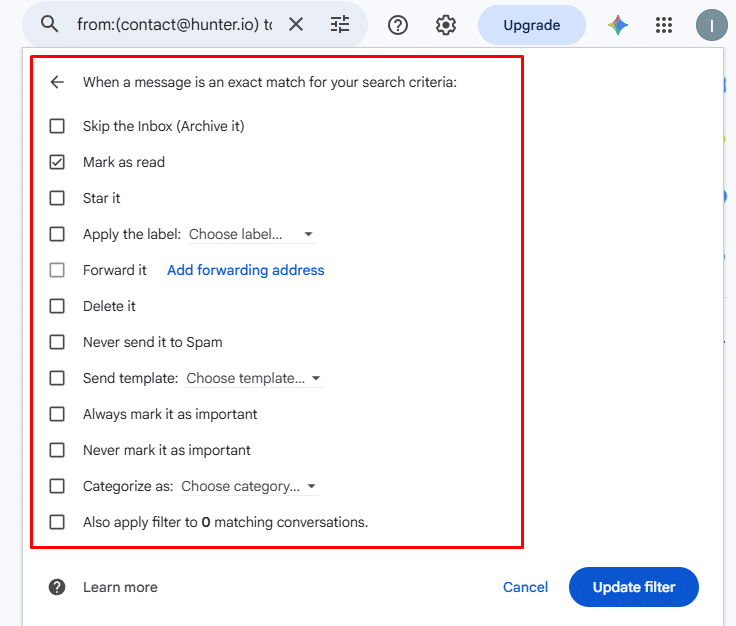
- Select the action you want Gmail to take when a message matches your search criteria:
- Skip the Inbox (Archive it): The email will be automatically archived and will no longer appear in your Inbox.
- Mark as read: The email will be automatically marked as read.
- Star it: A star will be added to the email.
- Apply the label: The email will be moved to a specific label or folder.
- Forward it: The email will be automatically forwarded to another email address.
- Delete it: The email will be moved directly to the Trash.
- Never send it to Spam: Important emails will be protected from being sent to the Spam folder.
- Categorize as: The email will be categorized as Primary, Social, Promotions, or another available category.
- When you are ready to reactivate the rule, simply remove that dummy string.
Alternatively, select the rule, click Export to save an offline XML backup, then safely delete the filter.
How to Export and Import Filters (XML File)
Exporting filters allows you to share rules across accounts, create disaster recovery backups, or onboard team members to unified inbox conventions:
- To Export: Navigate to Filters and Blocked Addresses, check the boxes next to the target rules, and click Export at the bottom of the page. Your browser downloads a structured
mailFilters.xmlfile. - To Import: Go to the same settings tab, click Import filters at the bottom, select your saved
.xmlfile, and click Open file. Preview the loaded rules, choose whether to apply them to existing historical data, and click Create filters.
Can You Filter Gmail by Date?
Yes, you can search emails by date using operators like after:YYYY/MM/DD or before:YYYY/MM/DD, but hardcoded dates should generally be avoided in persistent automated filters because they do not dynamically update as time progresses.
Applying a static date filter (such as before:2025/01/01) works well for one-time historical inbox sweeps, but incoming messages will never match a fixed past date.
Can You Create Gmail Filters on iPhone and Android?
No, you cannot create or edit Gmail filters in the official Gmail mobile app for iOS or Android. The native mobile application only supports basic label management, such as adding or deleting visual tags.
To set up or modify filters from a smartphone or tablet:
- Open a mobile browser such as Safari or Chrome.
- Navigate to mail.google.com.
- Open the browser’s menu options and select Request Desktop Website.
- Once the full desktop web layout has rendered, tap the Show search options slider in the search box to build your filter as usual.
Any filter created via desktop or desktop emulation takes effect instantly on the server across all mobile devices.
Why Are My Gmail Filters Not Working?
When a filter fails to process messages as intended, the issue almost always stems from logic overlap, syntactical bugs, or execution misconceptions.
Two Filters Conflicting with Each Other
Gmail executes all matching filters simultaneously rather than stopping at the first match. If Filter A is set to Delete it for automated digests, while Filter B matches your broader company domain with Never send to Spam and Star it, both rules apply to overlapping messages, resulting in unpredictable inbox behavior. Audit your list in Filters and Blocked Addresses to eliminate contradictory instructions.
Typos and Wrong Syntax
Common syntactical missteps include:
- Typing lowercase
orinstead of uppercaseOR. - Adding spaces between search operators and parameters (e.g., writing
from: acme.cominstead offrom:acme.com). - Forgetting opening or closing quotes around multi-word phrases.
- Using curly “smart” quotes (
“”) copied from word processors instead of plain ASCII quotation marks ("").
Filter Not Matching Older Emails
If your filter successfully sorts incoming mail but neglected your existing inbox messages, the retroactive sweep was skipped. As explained in our section on whether Gmail filters apply to old emails, you must edit the filter, click Continue, and select Also apply filter to matching conversations to process your email archive.
Conclusion and Next Steps
Building automated Gmail filters transforms email from a reactive chore into an organized, prioritized stream of communication. By combining targeted search criteria with structured labels and inbox-bypass rules, you ensure critical conversations receive immediate focus while routine operational noise is categorized for scheduled review.