
Do you run the same commands on your Linux system daily? Things like backing up files, clearing logs, or restarting services? You’re wasting hours every week on tasks that a machine can handle on its own.
Cron is Linux’s task scheduler. It automates commands or scripts to execute without manual intervention. You can set it to run every minute, hour, day, or at any custom interval you choose. If you’re a system admin managing servers or a developer automating tasks, cron is a key Linux tool to learn.
In this guide, you’ll learn:
- What cron and crontab are and how they work.
- How to create and edit your crontab file
- How to schedule cron jobs with the correct syntax.
- Real-world examples of useful cron jobs.
- Common errors and how to fix them.
- Guidelines for the effective use of cron that reduce errors.
📋 Prerequisites
Before getting started, make sure you have the following:
- A Linux system: This guide works on Ubuntu, Debian, CentOS, Fedora, and most major distros.
- Terminal Access: You should know how to open a terminal. Also, you should be able to run basic commands like
cd,ls, andsudo. - A text editor: Nano, vim, or any editor you’re familiar with (we’ll use nano in this guide)
- Know basic file paths: Understand the difference between
/home/user/and/etc/. - sudo/root privileges — Required if you want to schedule system-level tasks.
💡 Note: You don’t need to know shell scripting to follow this guide. But if you want to automate complex tasks, learning basic Bash scripting will help a lot.
What is cron and crontab?
Cron is a time-based job scheduler built into Linux and Unix-like systems. It runs in the background as a daemon and automatically executes commands or scripts at times and intervals you define — without any manual input.
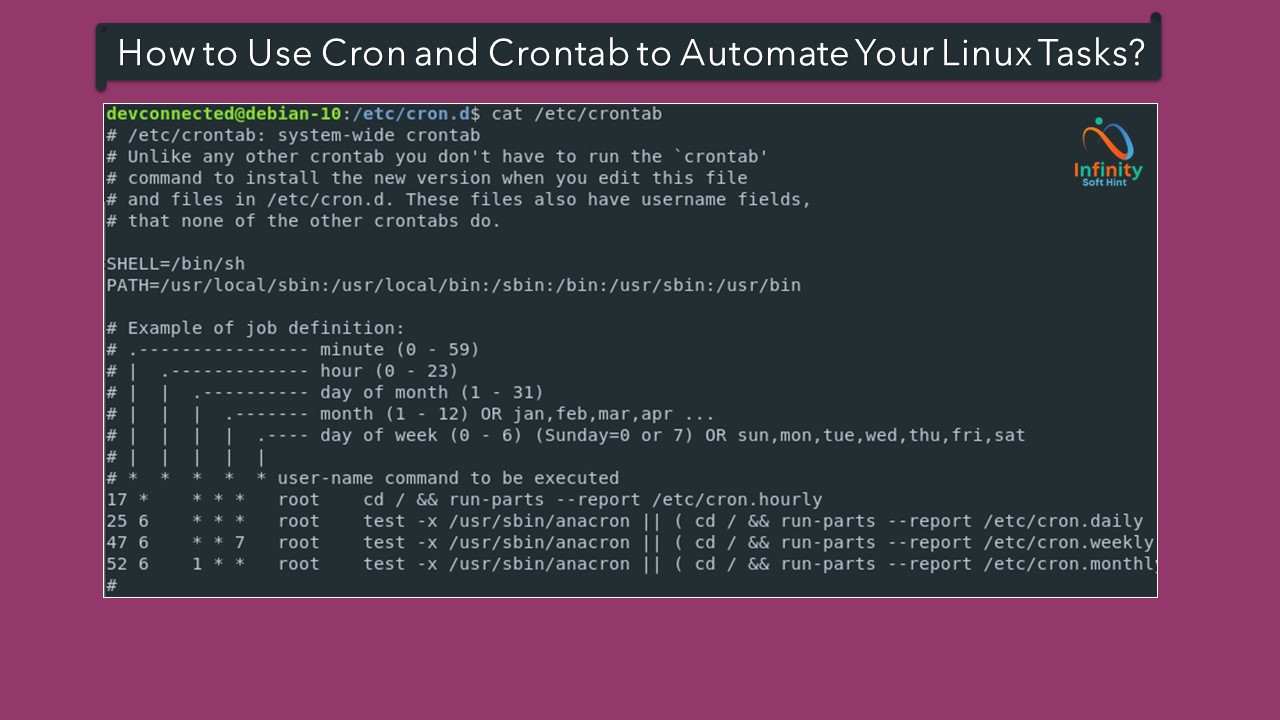
Crontab (short for “cron table”) is the configuration file where you define your scheduled jobs. Each user on a Linux system has their own crontab file, and there is also a system-wide crontab for root-level tasks.
Think of cron as an alarm clock for your Linux system — you set it once, and it keeps doing the work for you automatically, every day.
If cron is not already installed, you can install it using:
sudo apt install cronHow to create a crontab configuration file
To create a crontab configuration file, run the following command:
crontab -eIf you are running it for the first time, it will ask you to choose a text editor.

I will use nano, but you can use any other editor from the given choices. If you want to change the default editor for crontab, use the command below:
select-editorYou can use # to comment out any line in the crontab configuration file.

To close the nano editor, first save the file using Ctrl+S, then use Ctrl+x.
Some Useful Crontab Commands and Fields
To edit the crontab file of a specific user:
crontab -e -u usernameYou need to use sudo to edit the root crontab. For example: “sudo crontab -e -u root”
List Cron jobs:
crontab -lUse “crontab -l -u username” to list the cron jobs of a specific user if you have the necessary privileges.
Delete User’s Crontab :
crontab -rIt will delete the crontab of the current user. You can use -u to specify a user.
How to schedule cron jobs
To schedule a cron job, add a line to your crontab file in the following format:
minute hour day_of_month month day_of_week commandThe first five fields specify the cron job’s schedule. The minute, hour, day_of_month, month, and day_of_week fields can be specified using wildcards to match any value. For example, the asterisk (*) wildcard matches any value.
The last field in the crontab line specifies the command to be executed. This can be any command that can be executed in a Linux terminal.
Below are the ranges used in crontab:
- Minutes: Range from 0 to 59
- Hour: Range from 0 to 23
- Day of the month: Range from 1 to 31
- Month: Range from 1 to 12
- Day of the week: Range from 0 to 6, where 0 and 7 = Sunday
There is also special syntax for running cron jobs.
- @reboot: On reboot
- @yearly: Run Every Year
- @monthly: Run Every Month
- @weekly: Run Every Week
- @hourly: Run Every Hour
An example of a reboot is shown below.
The last field in the crontab line specifies the command to be executed. This can be any command that can be executed in a Linux terminal.
Schedule a task by using crontab guru.
Real-World Cron Job Examples
1. Back up files every day at midnight
0 0 * * * /home/user/scripts/backup.shThis job runs backup.sh Every night at 12:00 AM, keep your files safely backed up.
2. Run a bash script after every reboot
@reboot /home/user/scripts/startup.shAutomatically executes a script every time the system restarts — great for launching services or setting up environment variables on boot.
3. Generate a monthly sales report on the 1st of every month
0 0 1 * * /home/user/scripts/sales_report.shRuns your report generation script at midnight on the first day of each month — no manual effort needed.
4. Deploy the website every hour
0 * * * * /home/user/scripts/deploy_website.shTriggers a deployment script at the start of every hour to keep your website up to date automatically.
5. Delete log files older than 7 days every Sunday
0 0 * * 0 find /var/log/myapp/ -type f -mtime +7 -deleteAutomatically cleans up log files older than 7 days every Sunday at midnight — keeps your disk space under control without any manual cleanup.
6. Run a Python script every 30 minutes
*/30 * * * * /usr/bin/python3 /home/user/scripts/monitor.py*/30 means “every 30 minutes”. This is ideal for monitoring scripts, data fetching, or API polling tasks.
7. Send a disk space alert email every morning at 8 AM
0 8 * * * df -h | mail -s "Disk Space Report" your@email.comSends you a daily disk usage report via email every morning at 8 AM — a simple and effective way to monitor your server health.
8. Database backup every night at 2 AM
0 2 * * * /usr/bin/mysqldump -u root -pYourPassword mydb > /backups/mydb_$(date +\%F).sqlCreates a MySQL database backup every night at 2 AM with the date included in the filename — for example, mydb_2025-03-01.sql — so you always have a clean restore point.
9. Clear temp files every Monday at 6 AM
0 6 * * 1 rm -rf /tmp/myapp/*Cleans up your temp folder every Monday at 6 AM to prevent unnecessary files from piling up over time.
10. Restart a service every night at 3 AM
0 3 * * * sudo systemctl restart nginxIf a service degrades over time due to memory leaks or high load, scheduling a nightly restart keeps it running smoothly and reliably.
💡 Pro Tip: Can’t remember cron syntax? Use Crontab Guru — a free online tool where you paste your cron expression and instantly see when it will run next.
Common Errors Users Face When Using Crontab
Even experienced Linux users run into cron issues. Here are the most common errors and how to fix them:
1. bad hour / bad minute / bad day-of-month / bad month / bad day-of-week
Cause: You entered a value outside the allowed range.
Fix: Double-check the allowed ranges:
| Field | Allowed Range |
|---|---|
| Minute | 0 – 59 |
| Hour | 0 – 23 |
| Day of Month | 1 – 31 |
| Month | 1 – 12 |
| Day of Week | 0 – 7 (0 and 7 = Sunday) |
❌ Wrong: 60 25 * * * /script.sh ✅ Correct: 59 23 * * * /script.sh
2. Cron job is not running at all
Cause: Cron service is not running, or the crontab was not saved properly.
Fix: Check if cron is active:
sudo systemctl status cronIf it’s inactive, start it:
sudo systemctl start cron
sudo systemctl enable cron
3. Command works in the terminal but not in cron
Cause: Cron runs with a minimal environment — it doesn’t load your PATH, as the terminal does, and it can’t find the command.
Fix: Always use the full path of commands in crontab:
❌ Wrong: 0 * * * * python3 backup.py ✅ Correct: 0 * * * * /usr/bin/python3 /home/user/backup.py
Or set PATH at the top of your crontab file:
PATH=/usr/local/sbin:/usr/local/bin:/sbin:/bin:/usr/sbin:/usr/bin4. bad file mode (Permission Denied)
Cause: The script you’re trying to run doesn’t have execute permission.
Fix: Give your script execute permission by utilizing the chmod command to unlock proper execution rights:
chmod +x /path/to/your_script.sh5. Cron output not visible / no error messages
Cause: By default, cron output is sent via local mail and not displayed anywhere.
Fix: Redirect output to a log file to debug easily:
0 * * * * /path/to/script.sh >> /var/log/myscript.log 2>&12>&1 captures both standard output and error messages in the same log file.
6. Cron job ran, but the script did nothing
Cause: The script has a bug or is using relative paths that don’t work outside your home directory.
Fix: Test the script manually first:
bash /path/to/your_script.shAlso, make sure all file paths in the script are absolute.
7. @reboot job not running after restart
Cause: The system might be booting before the cron service starts, or the script needs a delay.
Fix: Add a sleep delay at the beginning of your script:
@reboot sleep 30 && /path/to/script.shTips for Using Cron and Crontab Effectively
1. Always use absolute paths
Cron runs in a minimal environment and does not know your default PATH. Always use full paths for both commands and scripts.
❌ Wrong: backup.sh ✅ Correct: /home/user/scripts/backup.sh
2. Test your script manually before scheduling it
Before adding a job to crontab, run your script directly in the terminal and make sure it works without errors.
bash /home/user/scripts/backup.shNever assume a script works — always verify first.
3. Always log your cron job output
By default, cron gives you no feedback. Redirect output to a log file to make debugging issues easier.
0 2 * * * /home/user/scripts/backup.sh >> /var/log/backup.log 2>&1Check the log anytime with:
cat /var/log/backup.log4. Use comments to describe your cron jobs
A crontab file with no comments becomes confusing very quickly. Always add a comment above each job explaining what it does.
# Back up database every night at 2 AM
0 2 * * * /home/user/scripts/db_backup.sh
5. Use Crontab Guru to verify your syntax
Before saving a cron job, paste your expression into Crontab Guru to visually confirm when it will run. This prevents costly mistakes, such as running a job at the wrong time.
6. Be careful with the crontab -r command
crontab -r deletes your entire crontab file without any confirmation. It is very easy to accidentally type -r instead of -e. Always double-check before running this command.
💡 To be safe, always keep a backup of your crontab:
crontab -l > ~/crontab_backup.txt
7. Set MAILTO to control email notifications
By default, cron sends output via local mail. You can control this behaviour at the top of your crontab file:
# Disable all email notifications
MAILTO=""

# Send output to a specific email
MAILTO="your@email.com"
8. Use @reboot carefully
Scripts that run on reboot may execute before the system is fully ready. Add a short delay to avoid issues:
@reboot sleep 20 && /home/user/scripts/startup.sh9. Monitor your cron logs regularly
Check cron logs to confirm your jobs are running as expected:
# Ubuntu/Debian
grep CRON /var/log/syslog

# CentOS/RHEL
grep CRON /var/log/cron
10. Never schedule resource-heavy jobs at the same time
If you have multiple heavy jobs, such as database backups, log cleanup, and report generation, stagger them to avoid overloading your server.
❌ Wrong: All jobs at 0 2 * * * ✅ Correct: Stagger them at 0 2, 0 3, 0 4 respectively
Conclusion
Cron and crontab are among the most powerful and time-saving tools available on any Linux system. Once you understand how to use them correctly, you can automate almost any repetitive task — from backups and log cleanup to deployments and system monitoring — all without lifting a finger.
In this guide, we covered everything you need to get started:
- What cron and crontab are and how they work
- How to create and manage your crontab file
- How to write cron job syntax correctly
- Real-world examples you can start using today
- Common errors and exactly how to fix them
- Proven tips to keep your cron jobs running reliably
The best way to learn cron is to start small. Pick one repetitive task you do manually right now and automate it with a cron job today. Once you see how well it works, you’ll wonder how you ever managed without it.
If you have any questions or want to share a cron job example that has helped you, feel free to Contact Us. We’d love to hear from you.
Also Read: